 admin
admin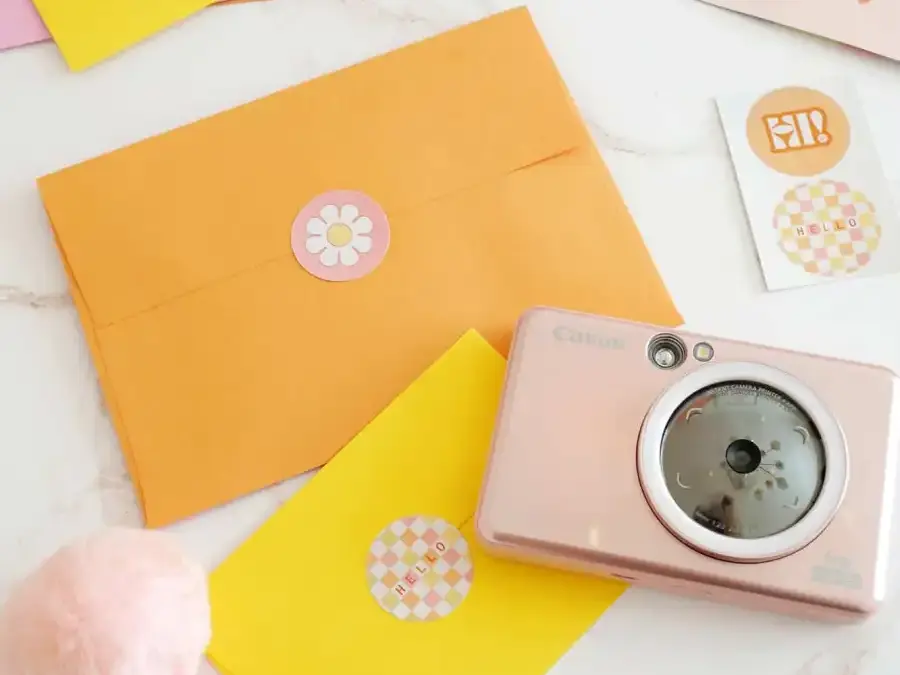
Custom mail stickers are a simple way to add a personal touch to letters, greeting cards, and postcards. With the IVY CLIQ+2 Instant Camera, compatible peel-and-stick paper, and the Canon Mini Print app, you can print designs or photos as stickers and use them to decorate your mail.
This project takes about 15 minutes, including five minutes of preparation and 10 minutes of printing. The instructions below use pre-cut circle stickers, but the camera can also print on 2″ x 3″ sticker paper.
How to Make Custom Mail Stickers
Gather your materials before starting. You will need an IVY CLIQ+2 Instant Camera, IVY peel-and-stick circle sticker paper, the Canon Mini Print app for Apple or Google Play, sticker designs saved to your phone, and a card, envelope, or postcard.
What the IVY CLIQ+2 can print
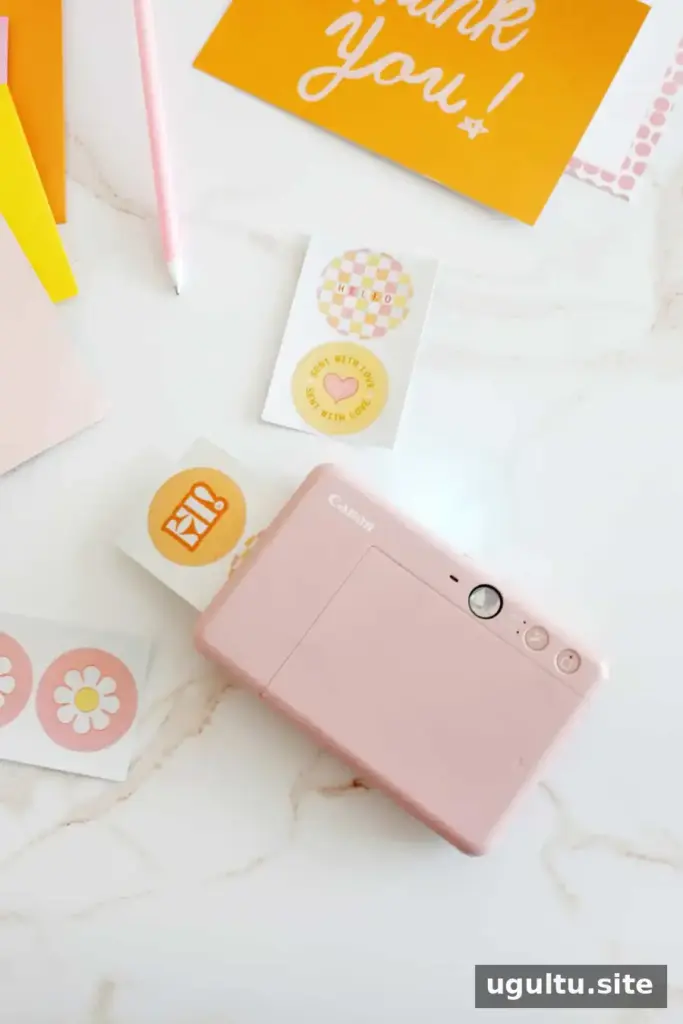
The IVY CLIQ+2 supports two sticker formats: a 2″ x 3″ rectangle or two 1.3″-wide circle stickers. You can take a picture with the camera and print it right away, or select an existing image from your phone’s camera roll in the app.
The app also offers collage tools and options for adding text or designs over photos. If you want to use a downloaded sticker design, save it to your phone’s photo library first so it is available when you open the app.
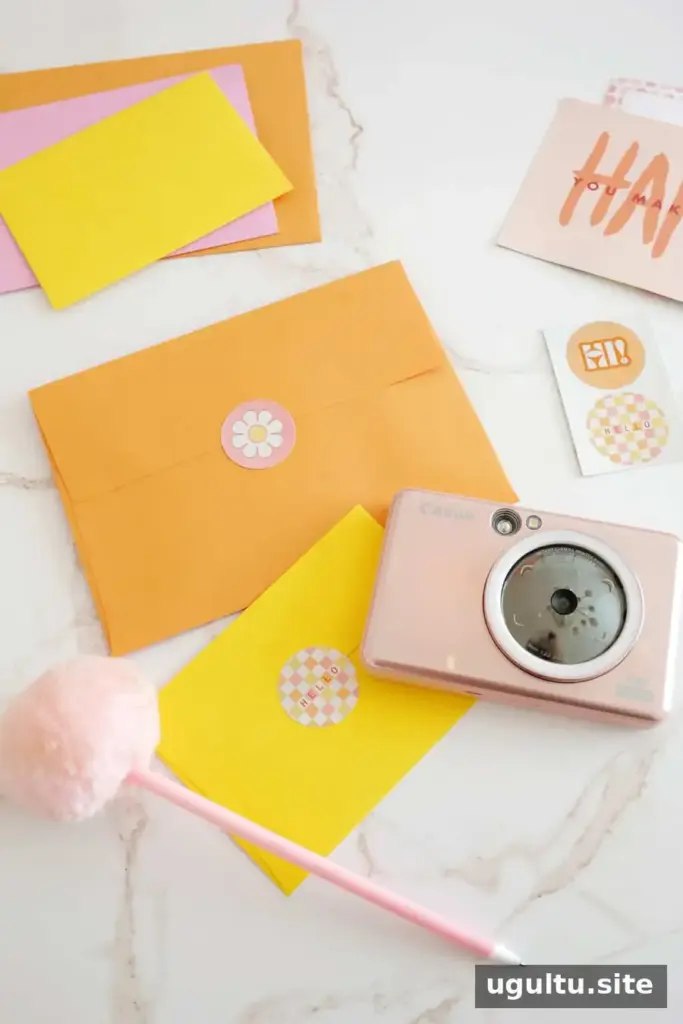
Connect the camera and prepare your designs
Turn on the camera and open the Canon Mini Print app. Connect the camera through Bluetooth; the connection status appears in the upper-right corner of the app’s home screen. Check that the camera is connected before choosing images to print.
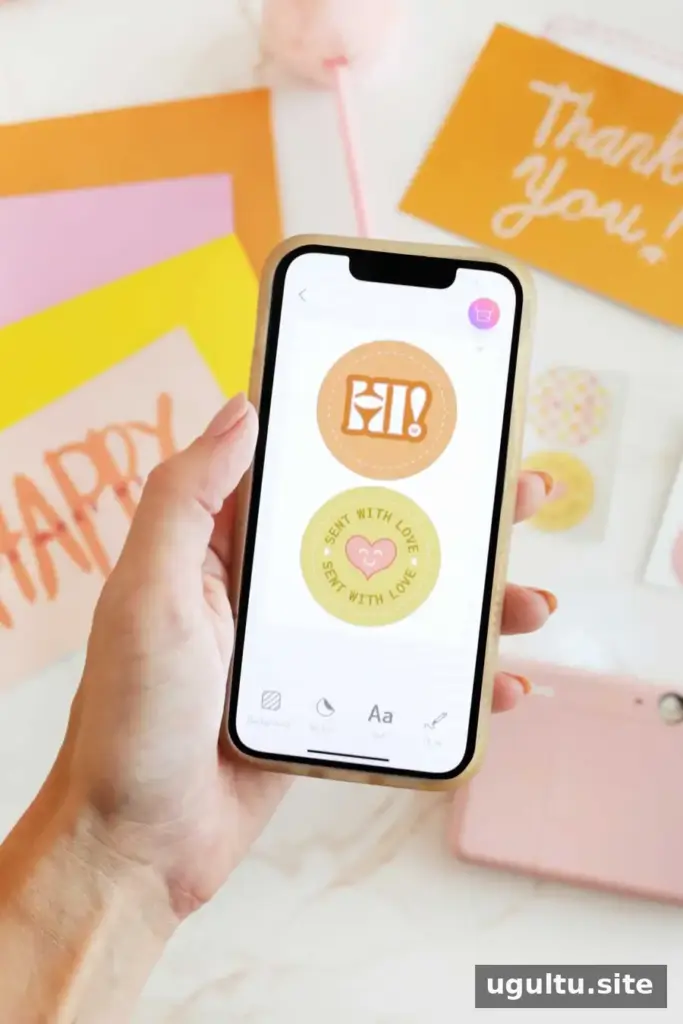
In the app, select “Pre-Cut Sticker” and choose two designs from your photo library. To print two copies of one design, select the same image twice. You can also choose personal photos instead of downloaded artwork.
Print and apply the stickers
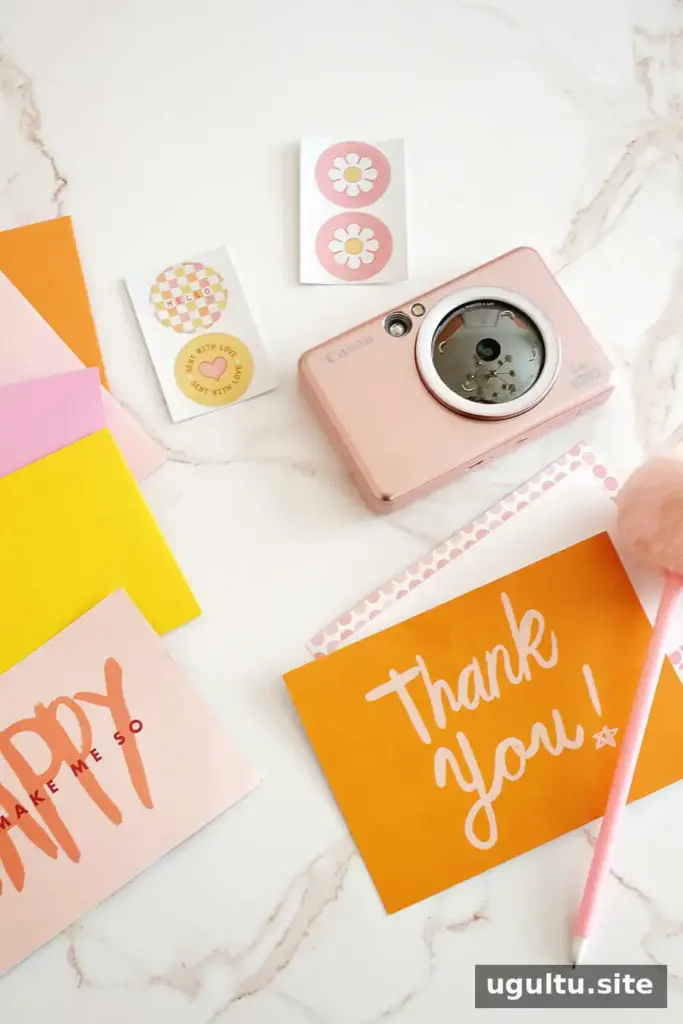
Tap the print icon in the upper-left corner of the app to send the designs to the camera. Once printed, peel the stickers from the backing and place them on your envelope, card, or postcard.
For mail, keep stickers clear of the recipient’s address, return address, postage, and any area needed for postal markings. Putting a decorative sticker on the back flap is one easy way to add personality without crowding the delivery details.
Can You Print Photos as Circle Stickers?
Yes. Choose photos from your phone’s camera roll to make pre-cut circle stickers. A favorite picture can personalize a thank-you note, birthday invitation, or postcard. Select images with a clear subject that will still be recognizable at the small sticker size.
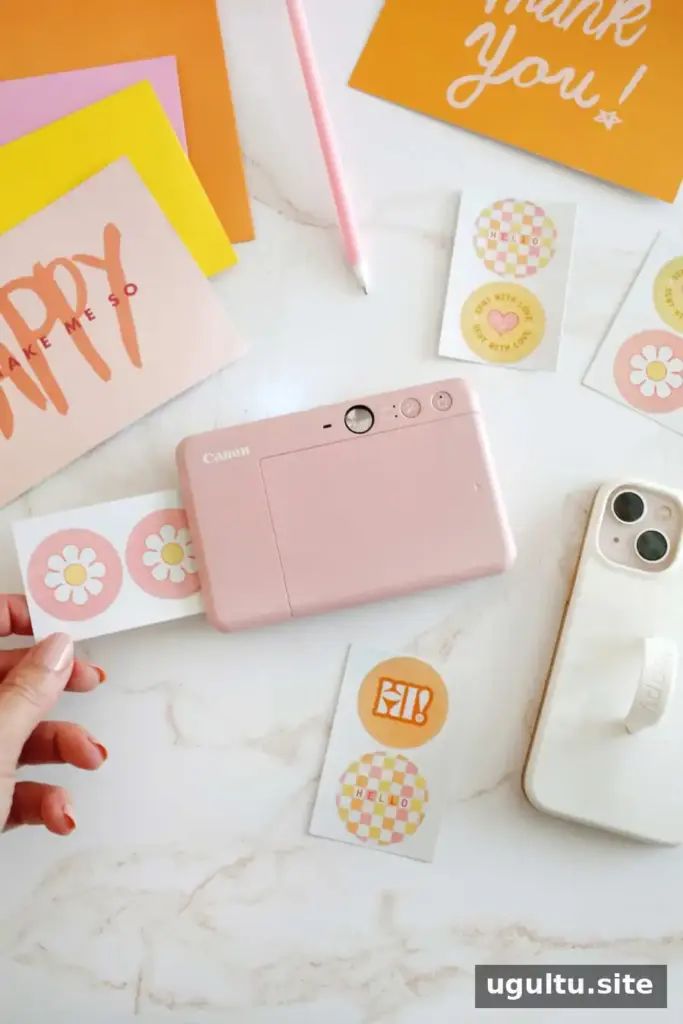
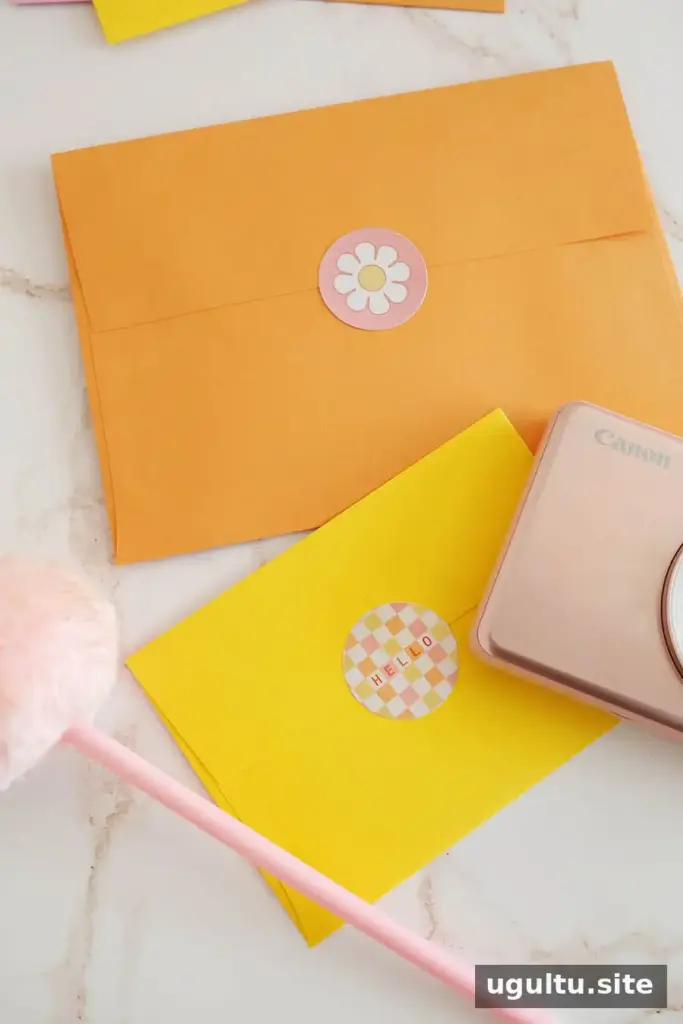
Custom mail stickers can help make everyday correspondence feel more considered, whether you use a personal photo, a simple design, or a pair of matching stickers. Try placing one on the back of an envelope or adding one to the card itself, while leaving all mailing information unobstructed.
By Laura
Custom Mail Stickers: Project Details
Yield: 20 stickers
Prep time: 5 minutes
Print time: 10 minutes
Total time: 15 minutes
Supplies and equipment
- IVY peel-and-stick circle sticker paper
- Card, envelope, or postcard
- 1 IVY CLIQ+2 Instant Camera
- Canon Mini Print app for Apple or Google Play
- Custom sticker designs saved to your phone
Instructions
- Save your sticker designs to your phone’s photo library and open the Canon Mini Print app.
- Turn on the IVY CLIQ+2 and connect it to the app through Bluetooth. Confirm the connection in the upper-right corner of the app’s home screen.
- Select “Pre-Cut Sticker”, then choose two designs from your photo library. Select one image twice if you want two copies.
- Tap the print icon in the upper-left corner. Peel the printed stickers from their backing and decorate your mail, keeping postal details clear.