 admin
admin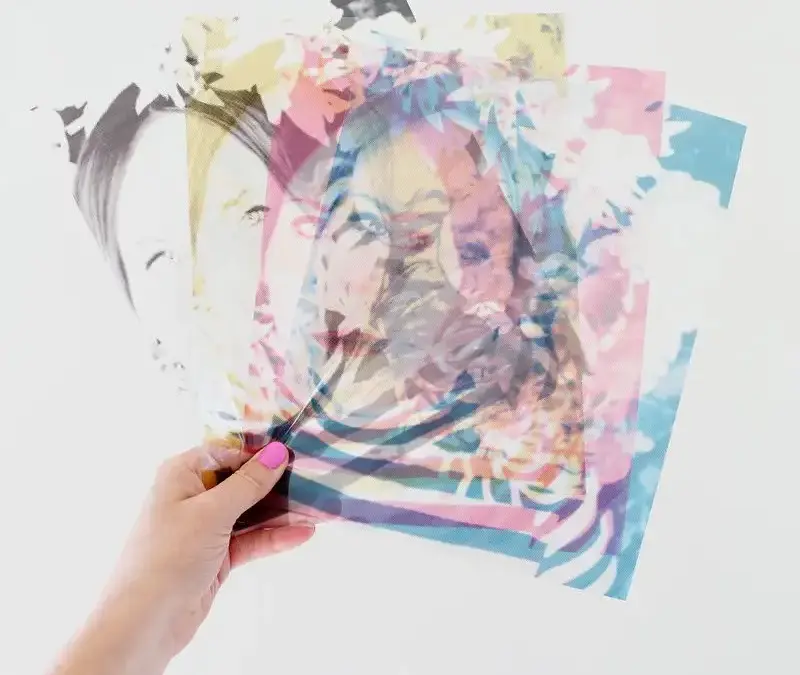
A CMYK photo dissection display turns a photograph into a layered artwork by separating its color channels and printing them on transparent sheets. Set inside a shadow box with spacers between the layers, the image gains depth and a distinctive dimensional appearance. This project uses basic photo-editing and cutting tools, and works best with a simple image that remains clear when separated into color layers.
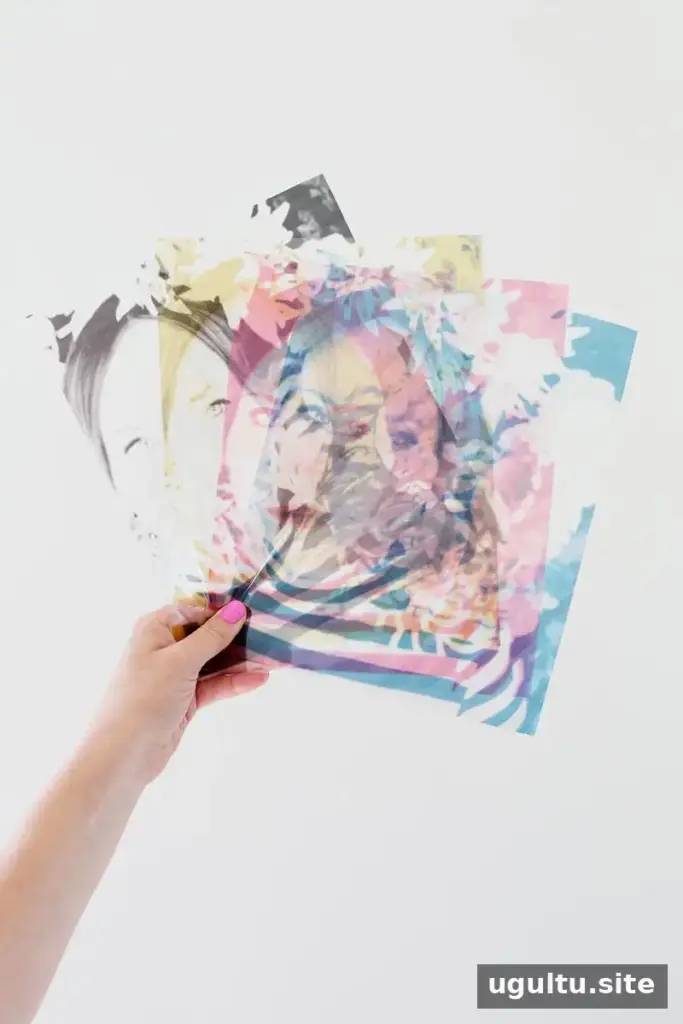
Materials and tools for a CMYK photo dissection display
Gather the following supplies before you begin. Check that your printer supports the transparency sheets you plan to use, and confirm which side is printable.
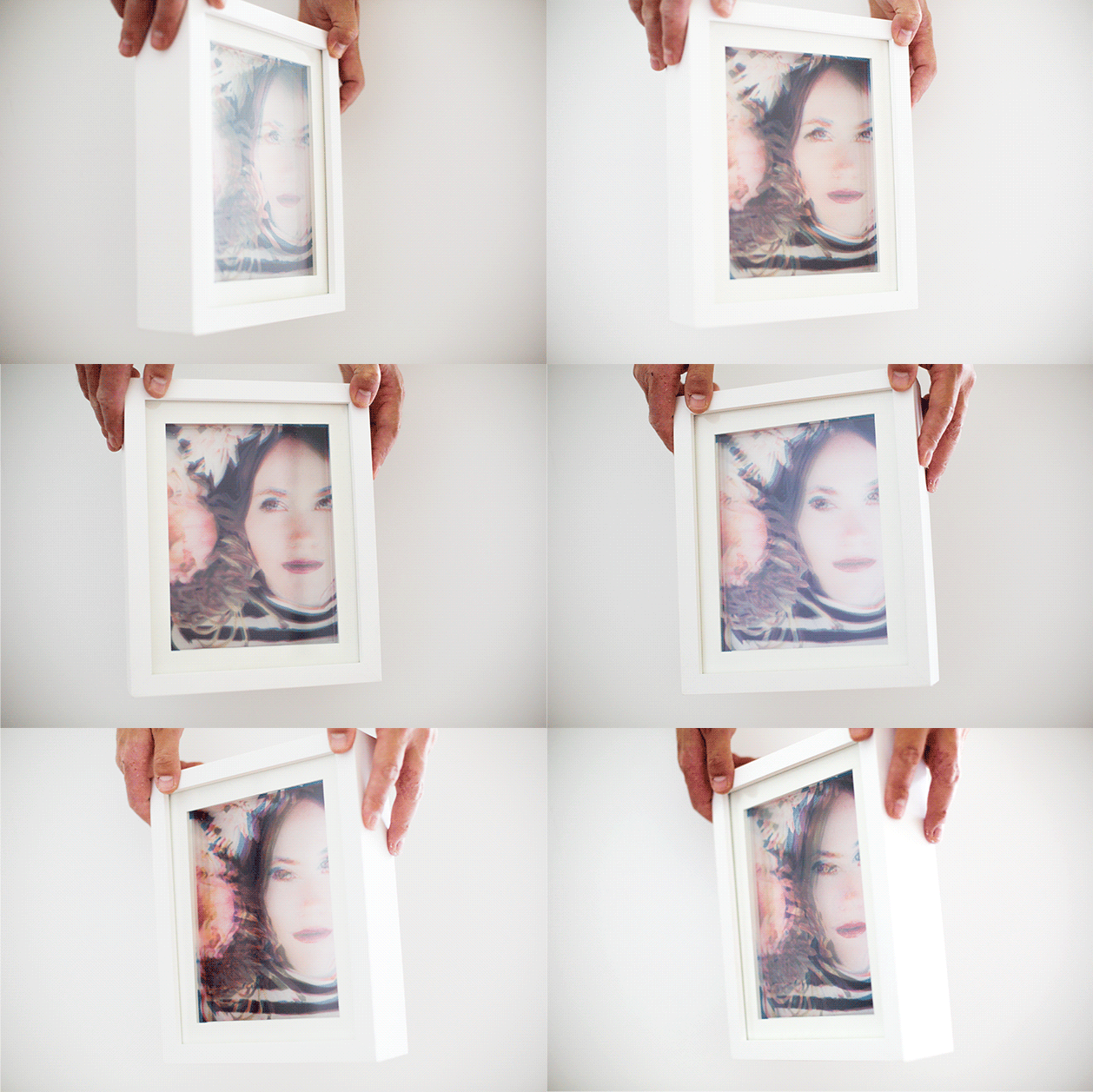
- Transparency paper
- Regular printer paper
- Shadow box frame
- Foam core board or poster board
- Printer, such as the PIXMA iP8720
- Camera or smartphone
- Photoshop
- Scissors or an X-Acto knife
- Ruler and a cutting surface
Prepare and separate the photograph
1. Choose a clear subject
Take or select a photograph with a relatively simple subject. Busy scenes can become difficult to read when divided into color layers, so a clean composition is a useful starting point. You can experiment with different photographs, but preview the image at its intended print size before preparing all the layers.
2. Separate the color channels in Photoshop
Upload the image to your computer and use Photoshop to prepare the printable layers. Menu names may differ slightly across software versions. The process is:
- Open the image.
- Choose Image > Mode > CMYK Color to convert it to CMYK.
- Set the intended print dimensions through Image > Image Size.
- Open the Channels tab and choose Split Channels.
- Convert the resulting grayscale channel images to CMYK.
- For each image, create a Hue/Saturation adjustment layer. Select Colorize, raise Saturation to the right, and choose a color for that layer.
- Flatten each image.
- Apply a halftone pattern using Filter > Pixelate > Color Halftone. Set Max Radius to 5 and enter 45 for each Screen Angle.
Keep the files organized as you work so each print can be matched to the right position in the display. A small test print can help you check the colors and scale before printing the full set.
Print the transparencies
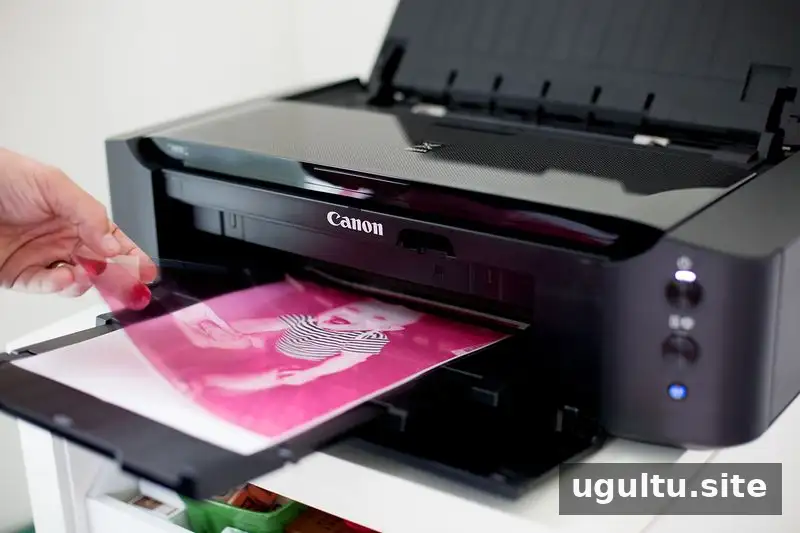
Print each prepared layer onto transparency paper. The PIXMA iP8720 was used for this project. With this printer, place the printable, filmy side of the transparency facing up. Printer instructions can vary, so check the paper orientation and media settings for your own device. Allow the ink to dry fully before handling the sheets to reduce the chance of smearing.
Cut and assemble the shadow box
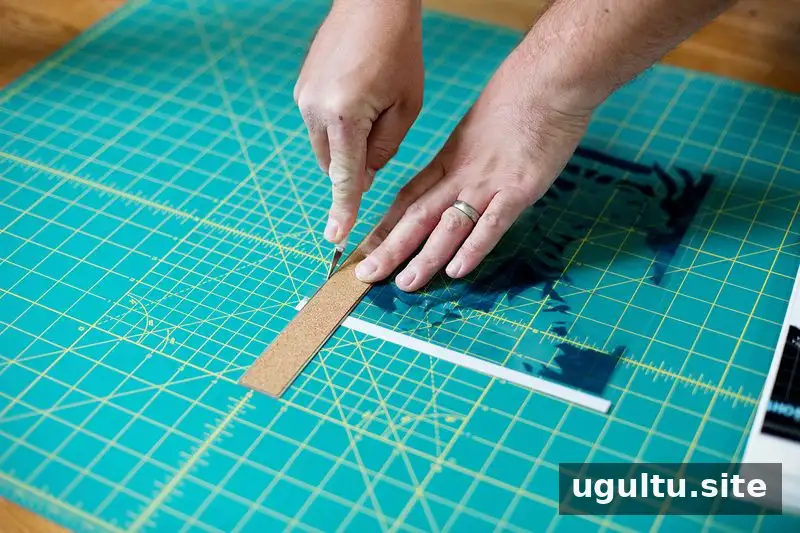
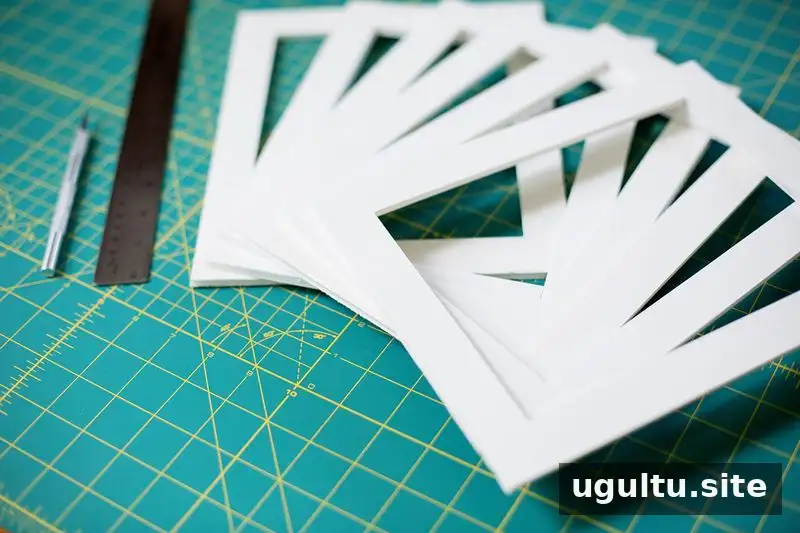
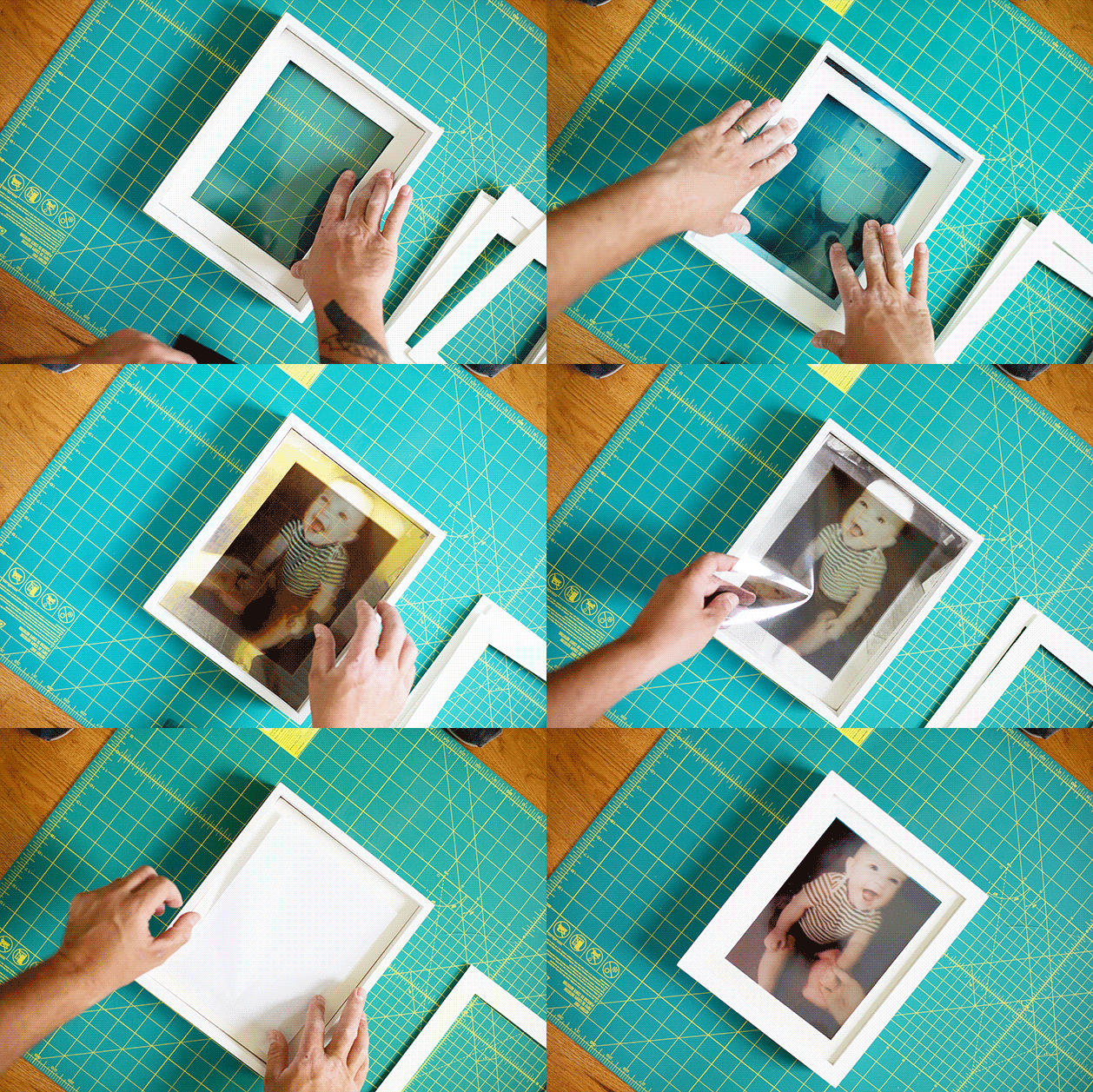
Trim the transparencies to fit inside the shadow box. Cut six poster-board or foam-core frames to the same outer dimensions. These pieces frame the transparent images and create spaces between them, which helps produce the layered, three-dimensional look.
Cut a piece of regular printer paper to fit the back of the frame. Placing it behind the layers can soften glare from behind while still allowing light through. Before securing anything, arrange the sheets and spacers in order and check that the image lines up as intended. Use a ruler and cutting surface when trimming; take care when handling an X-Acto knife, and cut away from your hands.
Mount and display the finished artwork
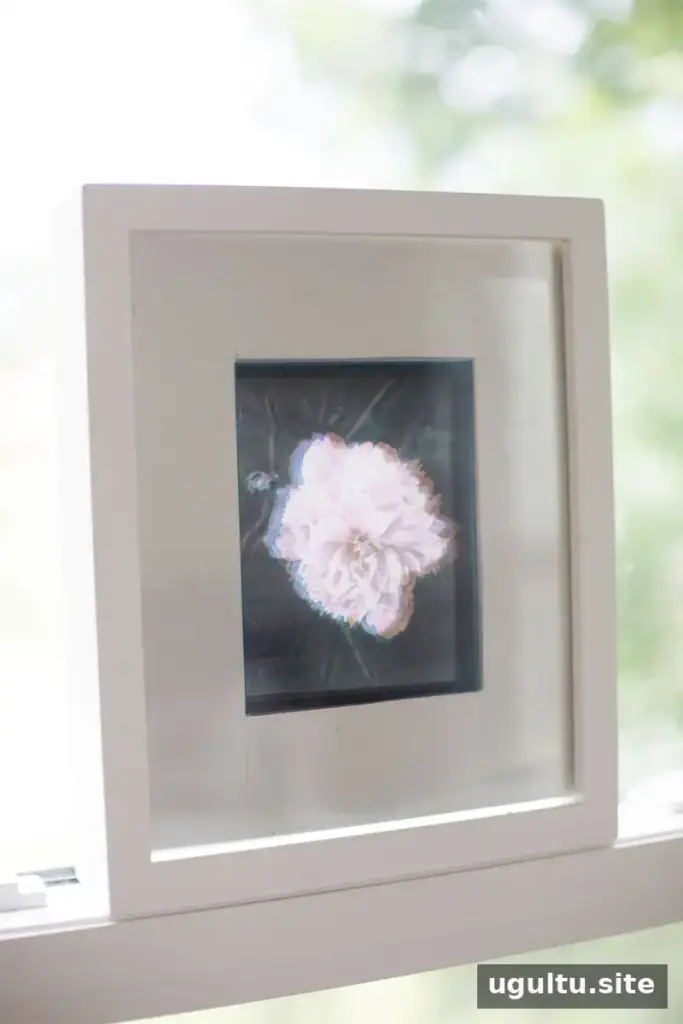
Mount the layers inside the shadow box, keeping the spacers between the transparent sheets, then hang the frame securely. A position in front of a window may make some images appear to glow because light passes through the transparencies. Check the display at different times of day to find a spot where the image remains easy to see.
Enjoy your CMYK photo dissection display
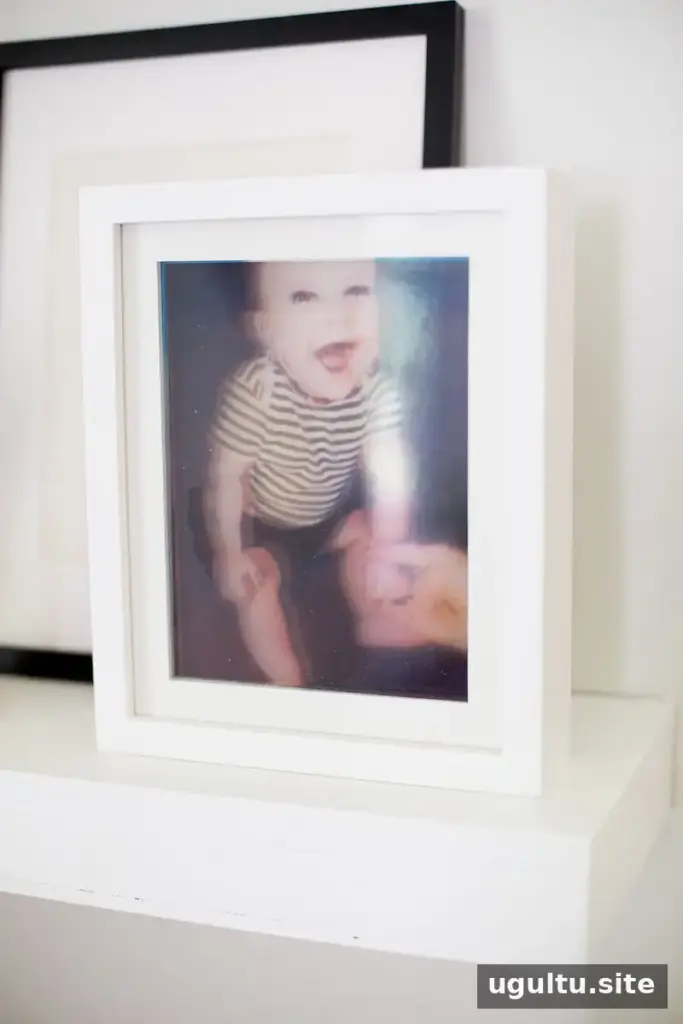
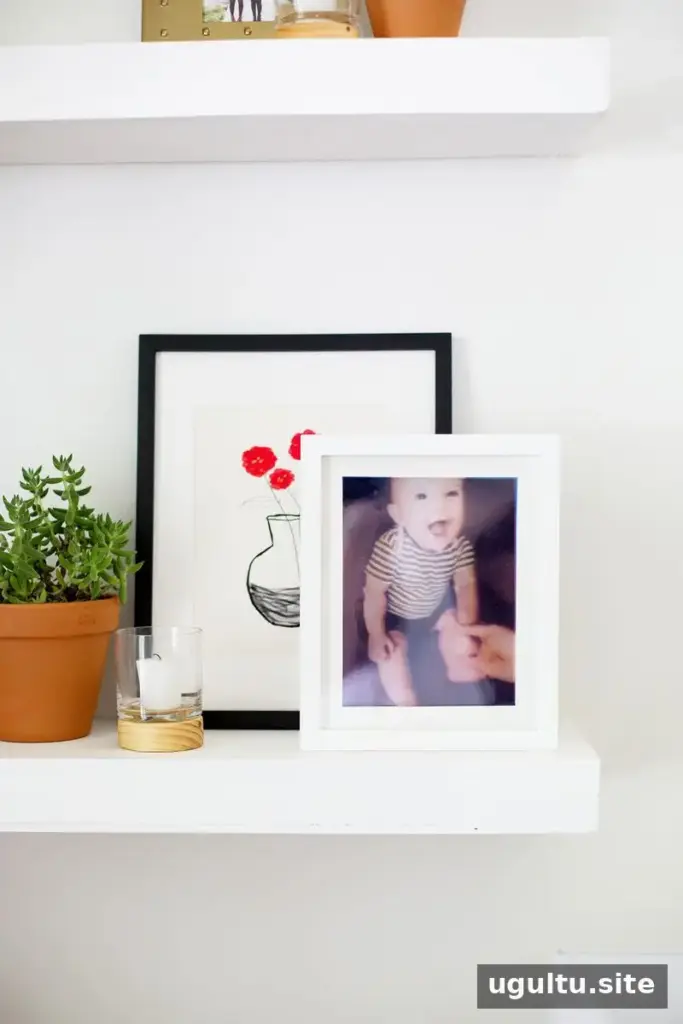
This project combines photo editing, transparent prints, and careful layering to give a familiar photograph a new sense of depth. For the clearest result, begin with a simple subject, verify the transparency orientation, and test the arrangement before completing the frame. A finished CMYK photo dissection display can be adapted to different images and shadow box sizes.
Project instructions by Josh.