 admin
admin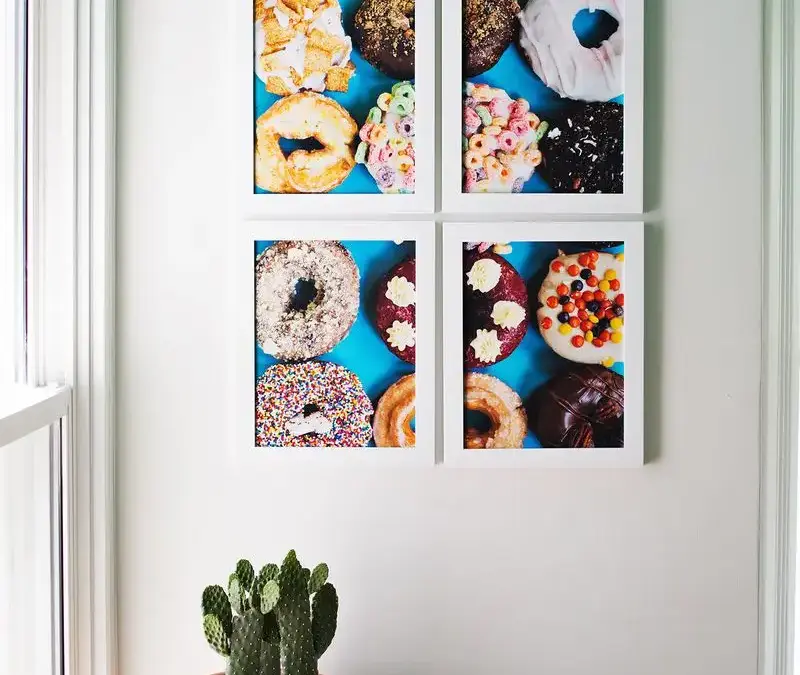
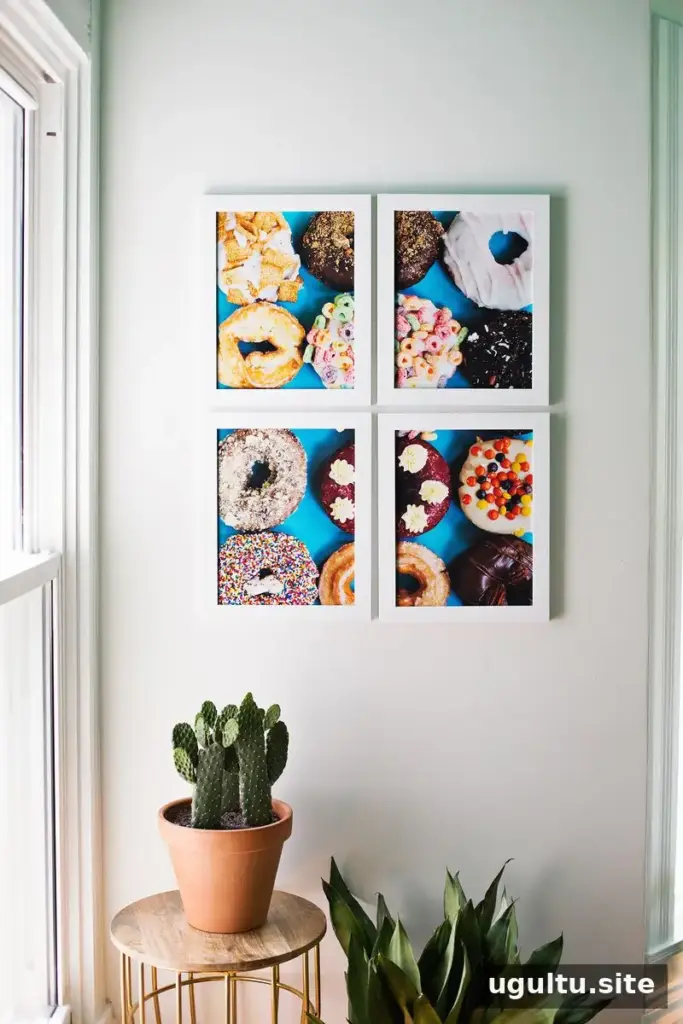
Large photographs can make striking wall decor, but printing one oversized image may be costly. Giant tiled photo art offers a practical alternative: divide one photograph into four sections, print each section separately, and display them together in frames. This example uses a donut photograph, though you can choose any image with enough detail and a composition that works when split into four parts.
Supplies for giant tiled photo art
Gather everything before you begin so the image sections are ready to print and trim consistently.
- Canon PIXMA iP8720 printer
- 13" x 19" photo paper; matte paper was used, while semi-gloss is another option
- Photo editing software, such as Photoshop or Photoshop Elements
- X-Acto knife, metal ruler, and cutting mat
- Four frames
Practical tip: Check that your printer can handle the paper size you plan to use, and confirm the frame openings before preparing the image files.
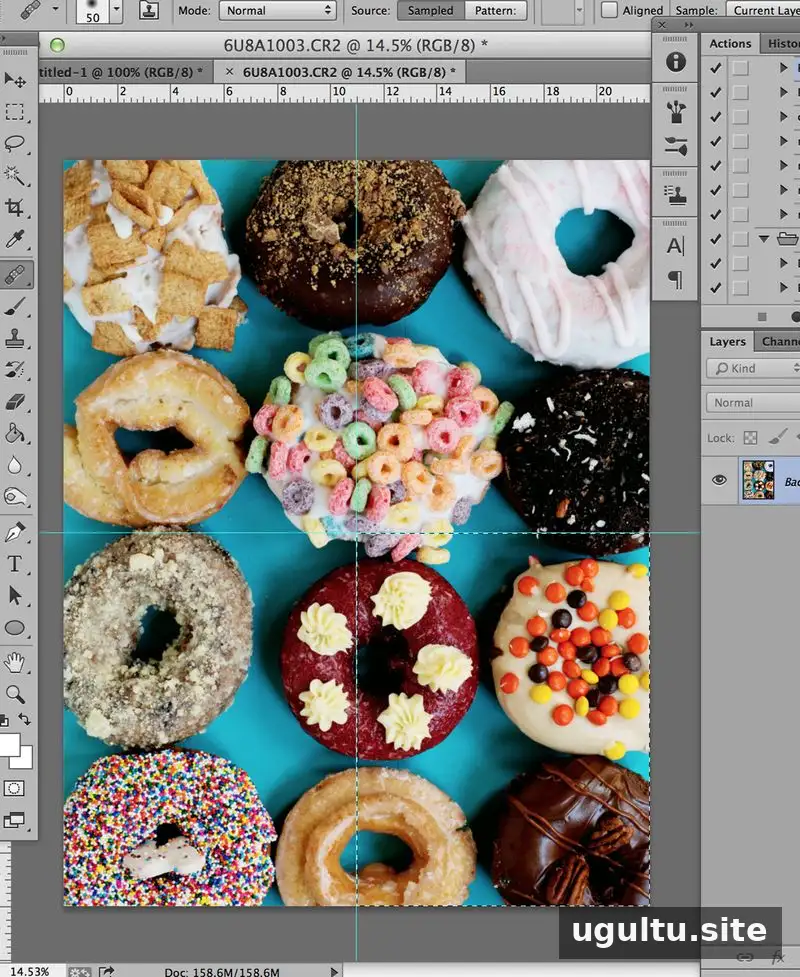
Open the photograph in your editing software and crop it to the composition you want. Check its resolution before resizing. The original process increases resolution in gradual 10% increments, moving from 72 dpi toward 300 dpi. Keep in mind that increasing a file’s resolution through software does not recreate detail that was not present in the original image, so begin with the sharpest, largest source photo available.
Divide the image into four printable sections
Set the overall image dimensions to match the combined size of the four frames. In this example, each frame measures 11" x 14", making the finished image 22" x 28". Use guides to divide the image into four equal sections, each measuring 11" x 14".
Create four new documents at the dimensions of one section. Select each part of the original image with the marquee tool, then copy and paste it into a separate document. Check that the sections are in the correct order and that important parts of the photograph are not unintentionally cut off at the divisions.
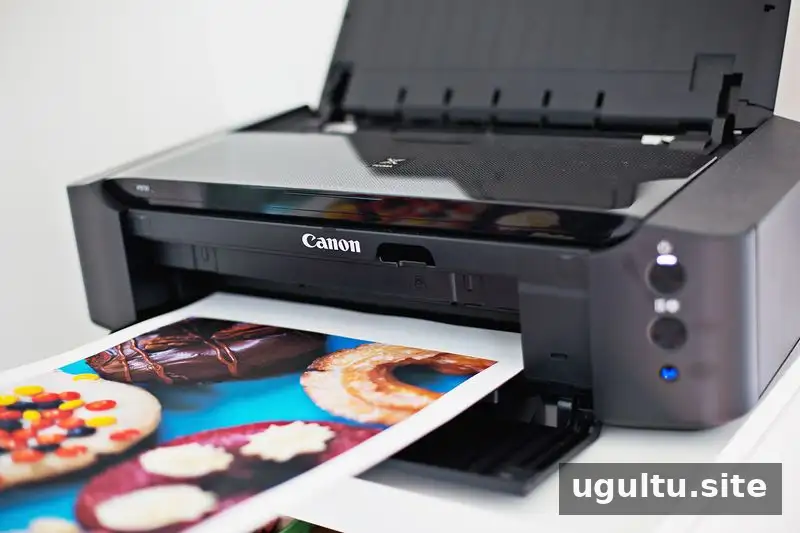
Repeat for all four sections, then print each one on photo paper. The Canon PIXMA iP8720 supports photo prints up to 13" x 19", which accommodates the 11" x 14" sections used here. Before printing the full set, review the print settings and make sure the paper size and orientation match each file.
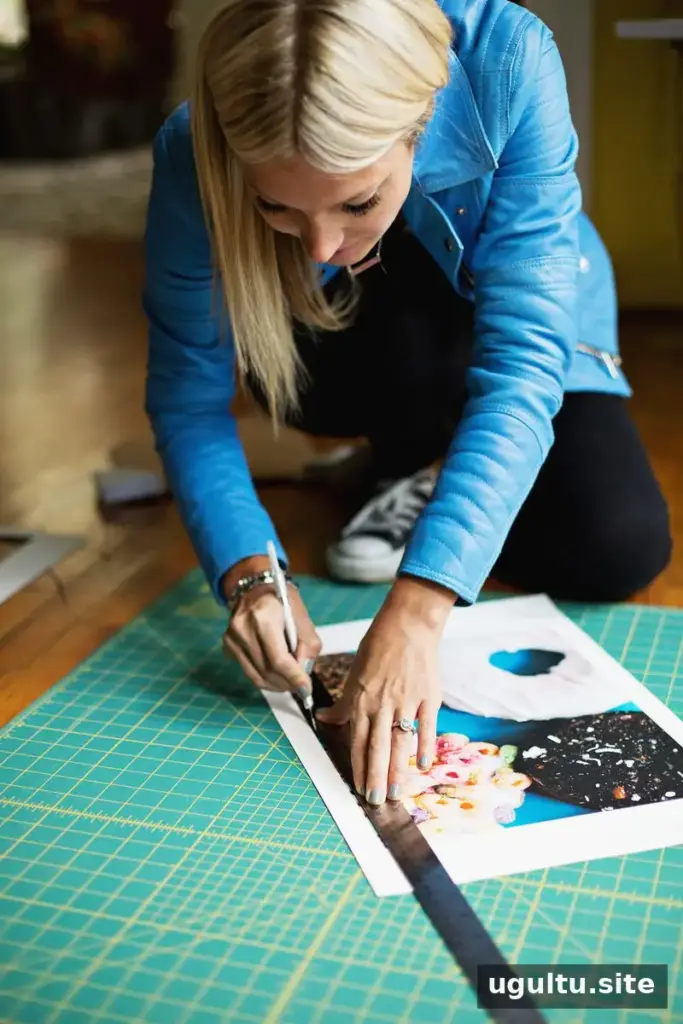
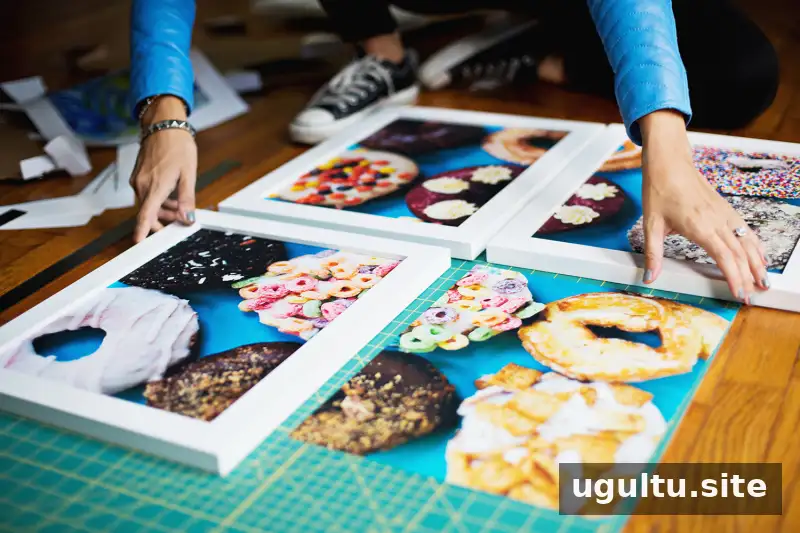
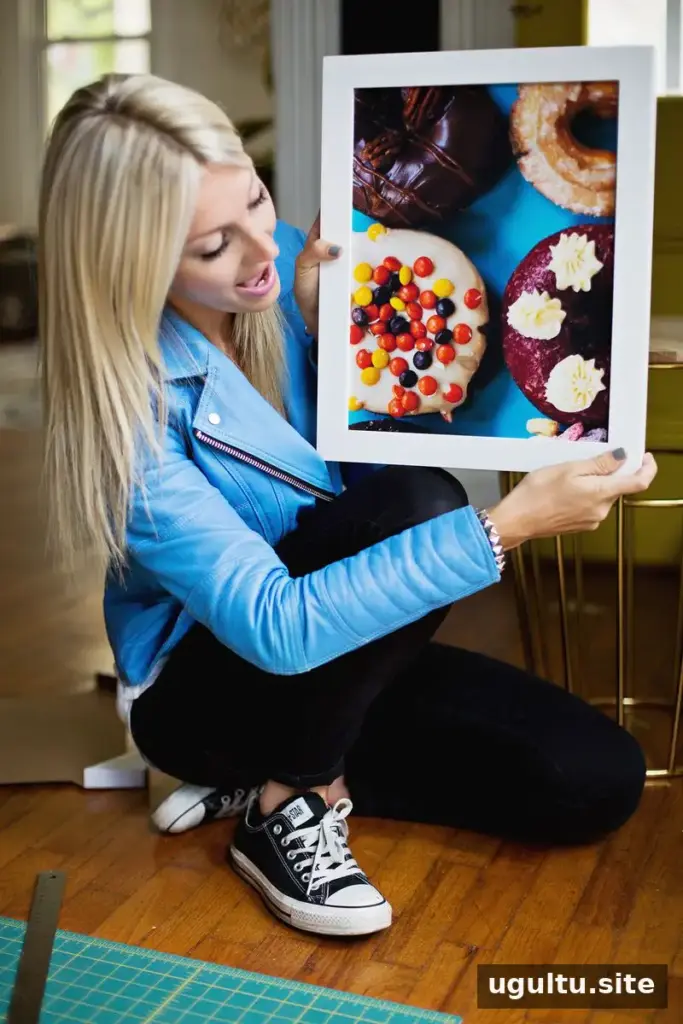
When the prints are ready, place them on a cutting mat. Use a metal ruler as a guide and carefully trim each print with an X-Acto knife to fit its frame. Work slowly and keep fingers clear of the blade. Fit each section into its frame, then arrange the frames on the floor to verify the image order and alignment.
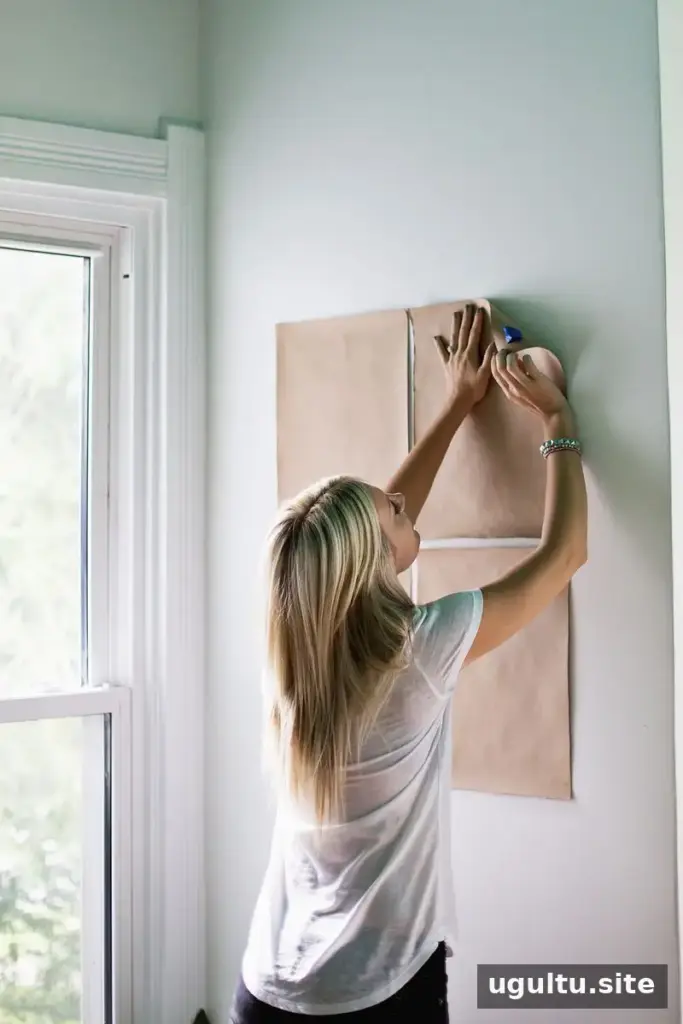
Plan and hang the framed photo
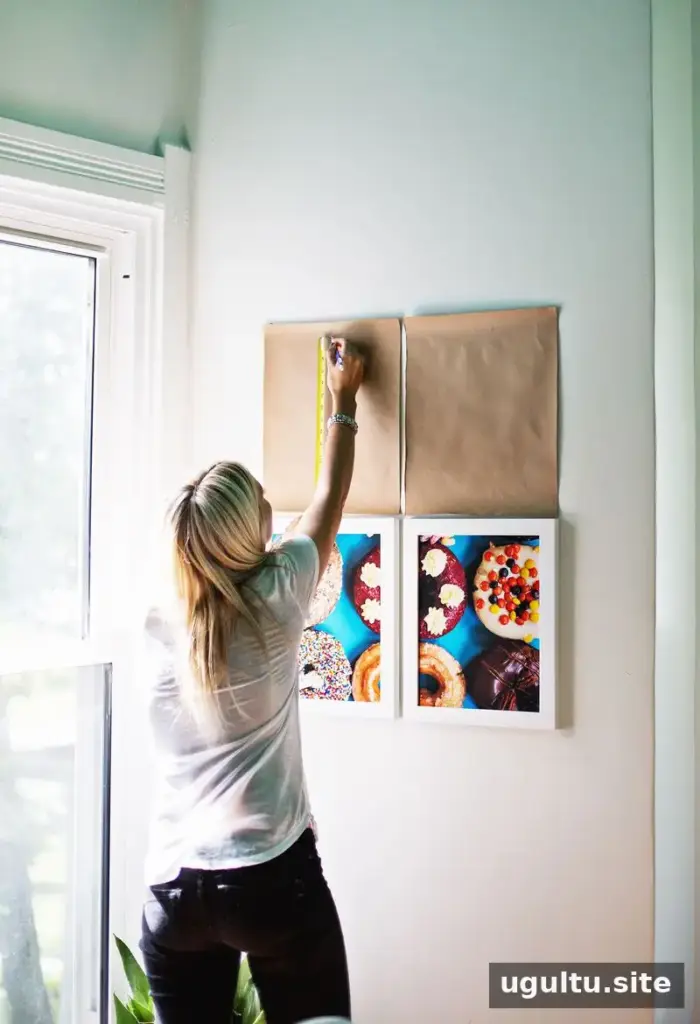
Cut four paper rectangles to the same size as the frames. Arrange these paper templates on the wall to test the layout before making holes. Measure the position of each frame’s nail hanger, mark the corresponding points on the paper templates, and install the nails at those marked locations. Remove the templates and hang the frames in the correct order.
For a cleaner overall effect, take time to align the gaps between frames and check the image from across the room. A paper mock-up makes it easier to adjust spacing before the frames are on the wall.
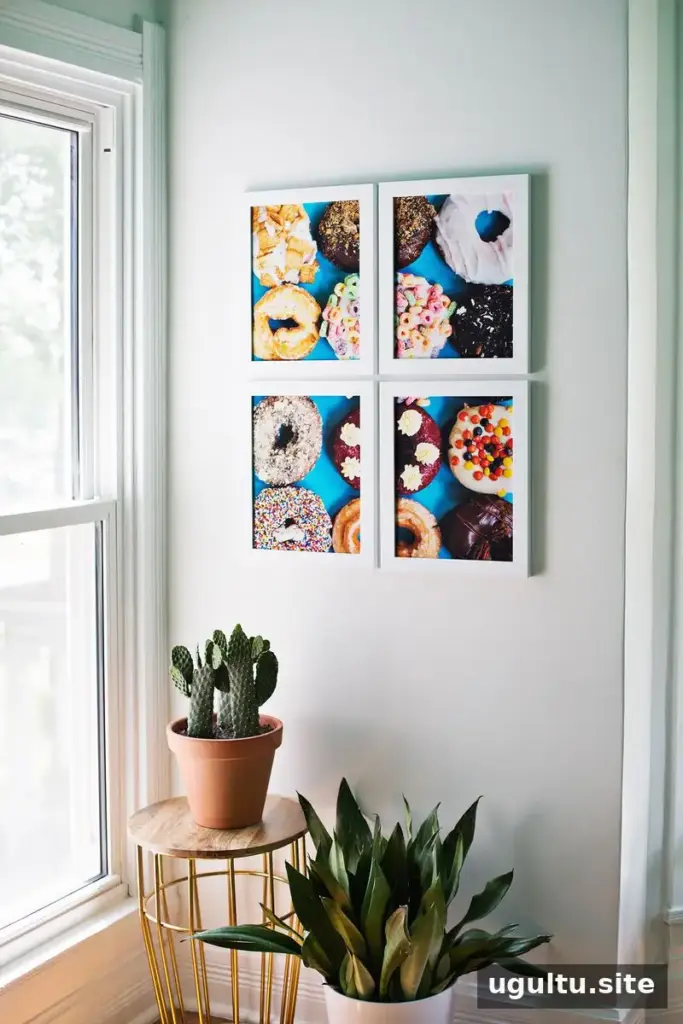
The finished donut image creates the impression of a single, oversized photograph while using four manageable prints. The same approach can work with many subjects, provided the image remains clear at the final size and its composition suits a four-part layout. With careful measuring, trimming, and placement, giant tiled photo art can turn a favorite photograph into a coordinated feature for a home or studio wall.
— Laura