
 admin
admin

Creating bright iPhone photos starts before you open an editing app. A clean lens and good natural light can make a bigger difference than a long list of filters. With a few simple adjustments, you can improve clarity, bring out color, and prepare images to share or print.
Use the steps below as a flexible workflow rather than a strict formula. Each photo is different, so make small changes and check that important details still look natural.

Tip 1: Clean the camera lens
Phone lenses collect fingerprints, dust, and smudges during everyday use. These can make an image look hazy or soft, even when the camera is focused correctly. Before taking a photo, gently wipe the lens with a clean, soft cloth. Avoid rough materials that could scratch it.
If your pictures still look blurry after cleaning the lens, check that the subject is in focus and hold the phone steady while taking the shot.

Tip 2: Look for good light
Natural light near a window can create a clear, balanced image without complicated equipment. When possible, position your subject so that the light falls evenly across it. Harsh backlighting or very dim surroundings can make details harder to capture and may leave a photo looking dark, noisy, or unevenly colored.
Good lighting also gives you more flexibility when editing. If an image is already reasonably well exposed, small adjustments can enhance its colors without making it look heavily processed.

Tip 3: Adjust brightness and contrast first
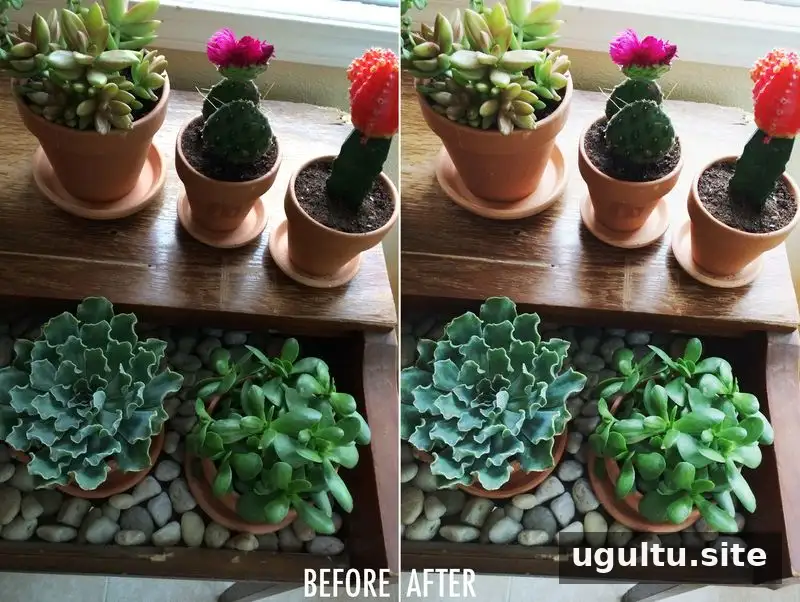
Brightness and contrast are useful first adjustments in a simple editing workflow. Raise brightness slightly to lift the overall image, then adjust contrast to give the difference between lighter and darker areas more definition. The right amount depends on the photograph, so avoid applying the same settings to every image.
A modest change can make a picture appear clearer and more vivid. If bright areas lose detail or shadows become too dark, reduce the adjustment until the image looks balanced.

For a pet or another subject with features that blend into its coloring, a little brightness and contrast can help details stand out, especially when viewed on a small screen. Check the subject’s face and markings before saving to make sure the edit has not washed them out.

Tip 4: Bring out color without overusing filters
Some phone photos can look muted, but adding a strong filter straight away may introduce an unwanted color cast. Try making subtle brightness and contrast adjustments first, then add a filter only if the image needs more color or a particular mood.
One option mentioned in this workflow is the C1 filter in VSCO Cam, which is included with the free app described in the original guide. The suggested strength is between 25% and 50%. Treat that range as a starting point and adjust it to suit the photo.
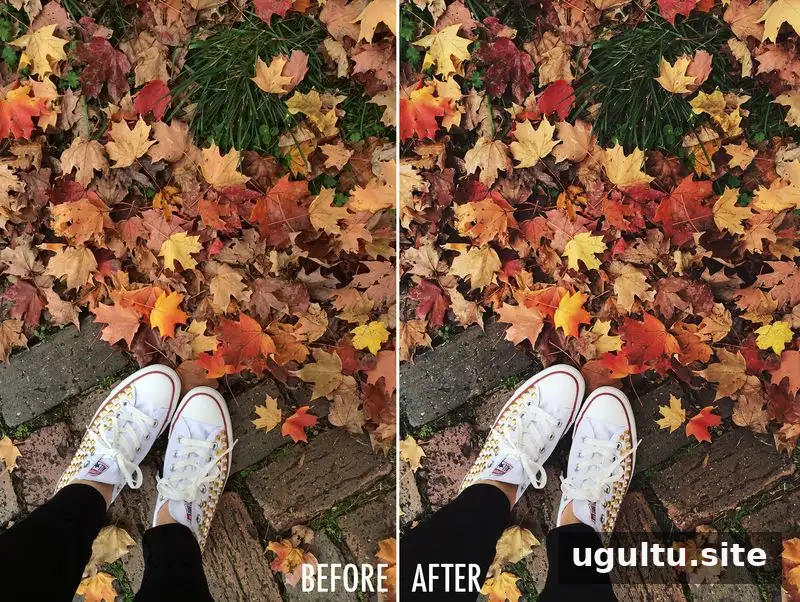
Not every image needs extra brightness. For a naturally colorful subject, such as autumn leaves, a light filter adjustment may be enough to add emphasis while keeping the scene believable.
Tip 5: Consider black and white
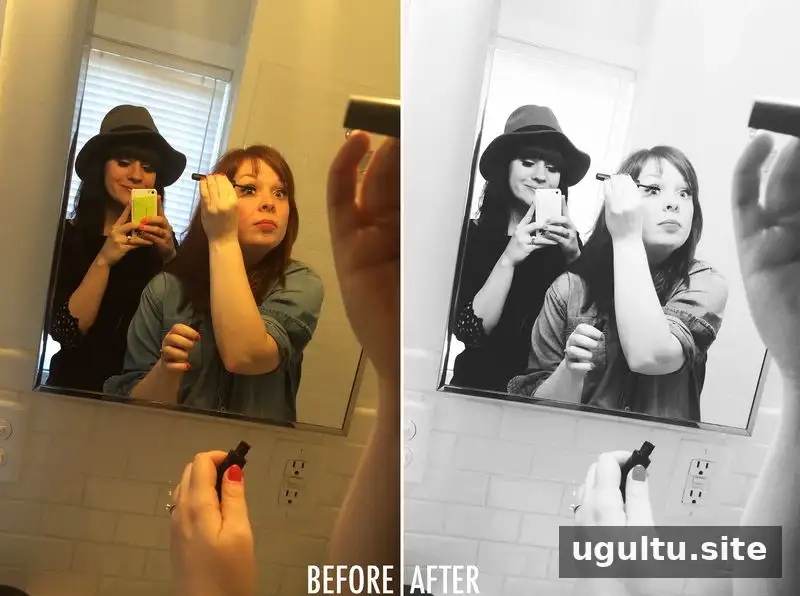
Black and white can be a useful choice when color is distracting or the lighting has produced colors that are difficult to balance. A small brightness and contrast adjustment can help create a crisp monochrome image. Before converting, consider whether color is important to the story or subject.

Removing color can also reduce visual competition. For example, a brightly colored object in the background may draw attention away from the main subject. A black-and-white edit can simplify the image, but check that the subject remains easy to distinguish from its surroundings.

Tip 6: Edit portraits with a light touch
People are not always photographed in ideal lighting, and strong sunlight or a sunset can affect how skin tones appear. Brightness and contrast can help a portrait look clearer, but make gradual adjustments and keep skin texture and natural tones in view.
The original example uses the Relic filter from Afterlight’s Original pack, reduced to about 25% strength, to add cooler tones and counter the red cast in a sunset portrait. Filter names and controls can vary by app version, so use the visual result—not the label—as your guide.

For a selfie, the same restrained approach can bring out details in the eyes, hair, makeup, or other features. If a cool-toned filter is used, lower its strength until the effect is subtle. Compare the edited image with the original to avoid making skin or other colors look unnatural.
Conclusion: A simple workflow for bright iPhone photos
Bright iPhone photos do not require a complicated editing routine. Clean the lens, find the best available light, and begin with gentle brightness and contrast adjustments. Add color or switch to black and white only when it supports the image. Small, intentional edits usually preserve more detail and produce a natural-looking result.
By Elsie