 admin
admin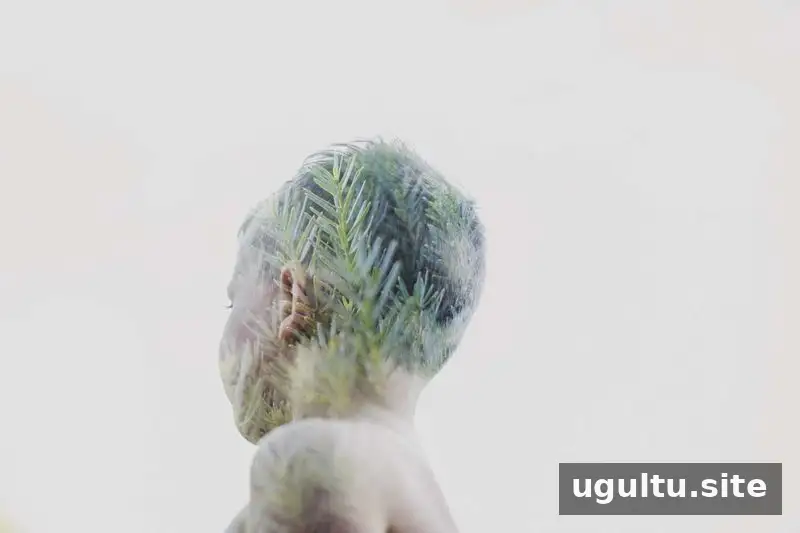
An in-camera double exposure combines two photographs in a single frame, creating an image with layered details, patterns, or silhouettes. Film photographers traditionally made one by exposing the same frame twice. Some digital cameras can create a similar effect directly in the camera, so you can experiment without combining the images later in editing software.
What you need for an in-camera double exposure
First, check whether your camera supports multiple exposures. This feature is available on some digital camera models, but the menu options and process vary. Consult your camera manual for the right instructions for your model.
The steps below describe the menu settings on a Canon 5D Mark III. Treat them as a model-specific example rather than universal instructions; other cameras may use different names or controls.
Set up multiple exposures on a Canon 5D Mark III
- Press the button on the back of the camera at the top left, marked with a paintbrush and rectangle, to open the menu.
- Select Multiple exposures.
- Set the mode to On: Func/Ctrl, then choose Additive for the multiple-exposure control.
- Set the number of exposures to 2.
- Under Save source imgs, select All images.
- Choose whether the camera should continue taking multiple exposures. Select Continuously to keep the feature active, or 1 shot only to return to normal shooting after one combined image.
- If you want to use a photo already on your camera as the base image, select it using the option at the bottom of the menu.
On the Canon 5D Mark III, Live View can display an overlay of the base image while you compose the second exposure. This preview helps you position the next subject in relation to the first. Menu labels and preview features can differ on other cameras, so check your manual before shooting.
Compose and shoot the two images
After choosing your settings, exit the menu and turn on Live View if you want to use the overlay. If you did not choose an existing base image, frame your first subject, focus, check the exposure, and take the picture. A camera indicator may appear to show that multiple-exposure mode is active.
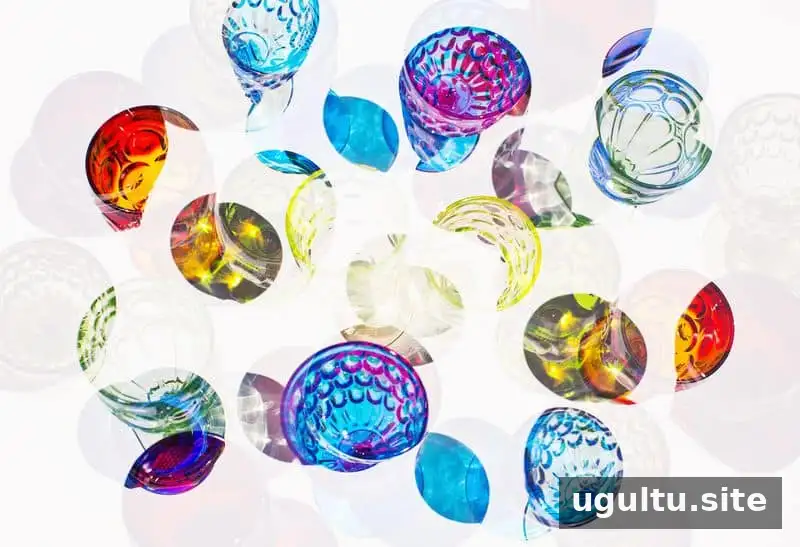
As you frame the second photograph, the camera may show a faint, ghost-like version of the first image. Use this preview to decide where the subjects and shapes should overlap. Set your focus point for the second image before taking the shot; the focus controls may work differently depending on your camera.
For a simple first attempt, make the base image a high-contrast composition with plenty of bright or empty space and a distinct dark area. A silhouette against a bright sky is one example. The second image can then add detail and color where the darker parts of the base image appear. Try a detailed subject or textured scene for the second exposure, and review the result before changing your composition.
Practice with composition and camera settings
Begin with a small number of test images so you can see how your camera blends the frames. Keep the manual nearby and explore settings such as blending options and how the camera saves the source images. Make one change at a time; that makes it easier to understand which setting affected the final photograph.
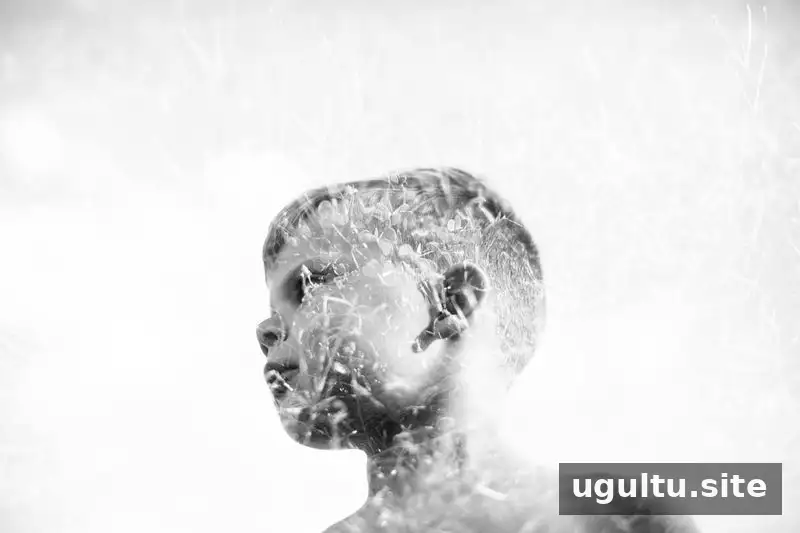
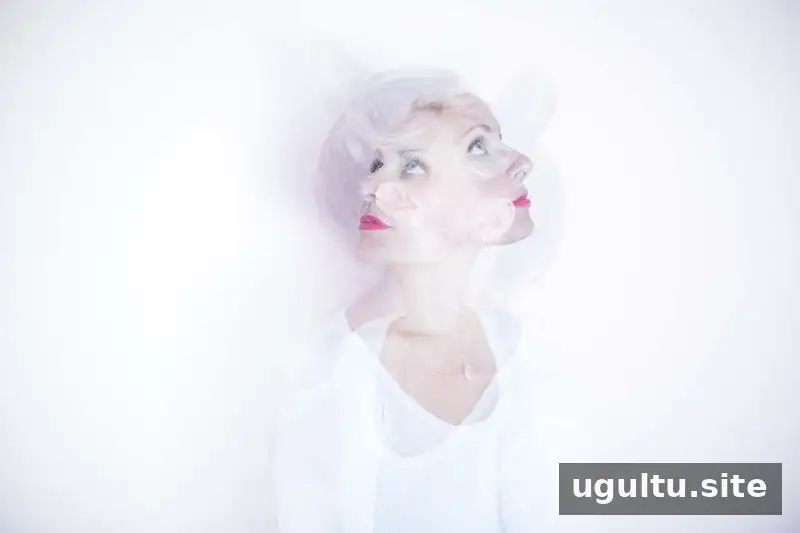
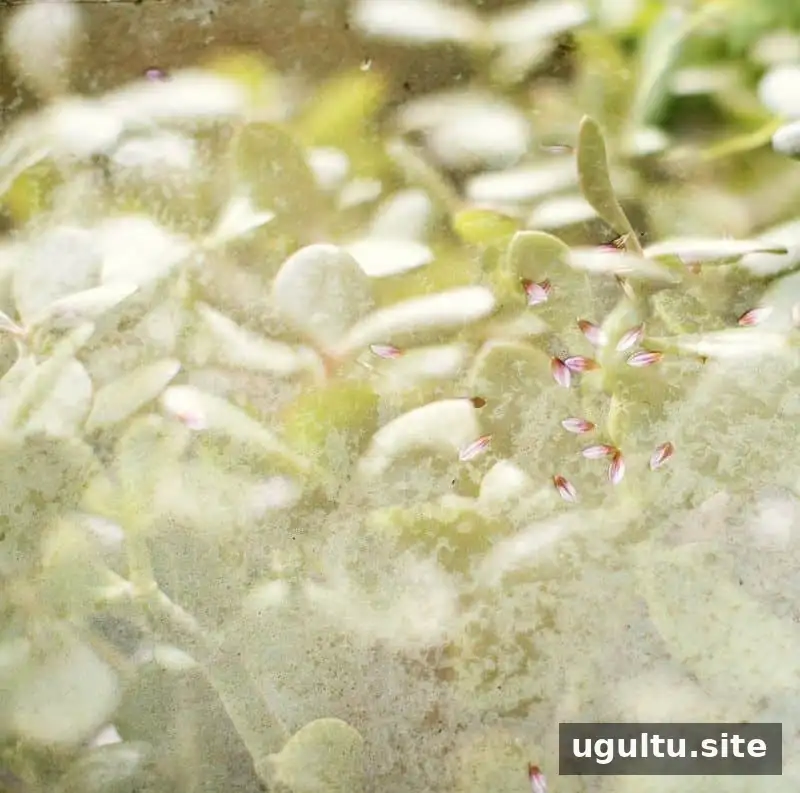
A bright background with a dark silhouette is a useful starting point, but double exposures can also be abstract. Experiment with different subjects and framing. In the example below, the second image was turned to create a right-angle composition.
If your camera does not support in-camera double exposure
You can create a similar composite in Photoshop using two photographs. Choose a base image and a second image with the kind of contrast or detail you want to combine. Place the second photo over the base image, then lower the upper layer’s opacity until the blend looks right. This editing method is an alternative for cameras without a built-in multiple-exposure feature.
Conclusion: Keep experimenting with in-camera double exposure
An in-camera double exposure is a practical way to combine two scenes in one photograph, provided your camera has the required feature. Start with two exposures, use a simple high-contrast base image, and check the preview when composing the second frame. Camera controls vary, so refer to your manual and adjust your approach as you learn what works for your model.
— Janae