 admin
admin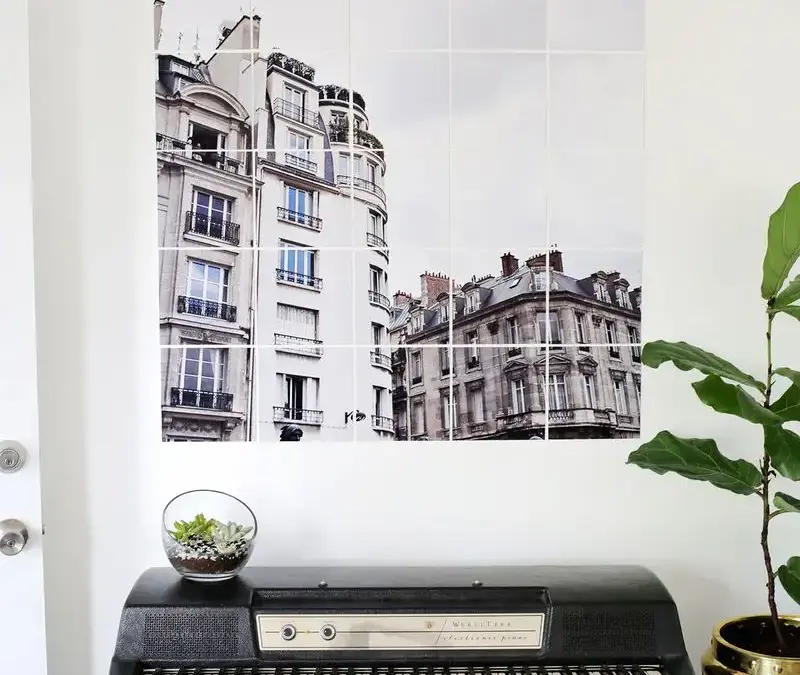
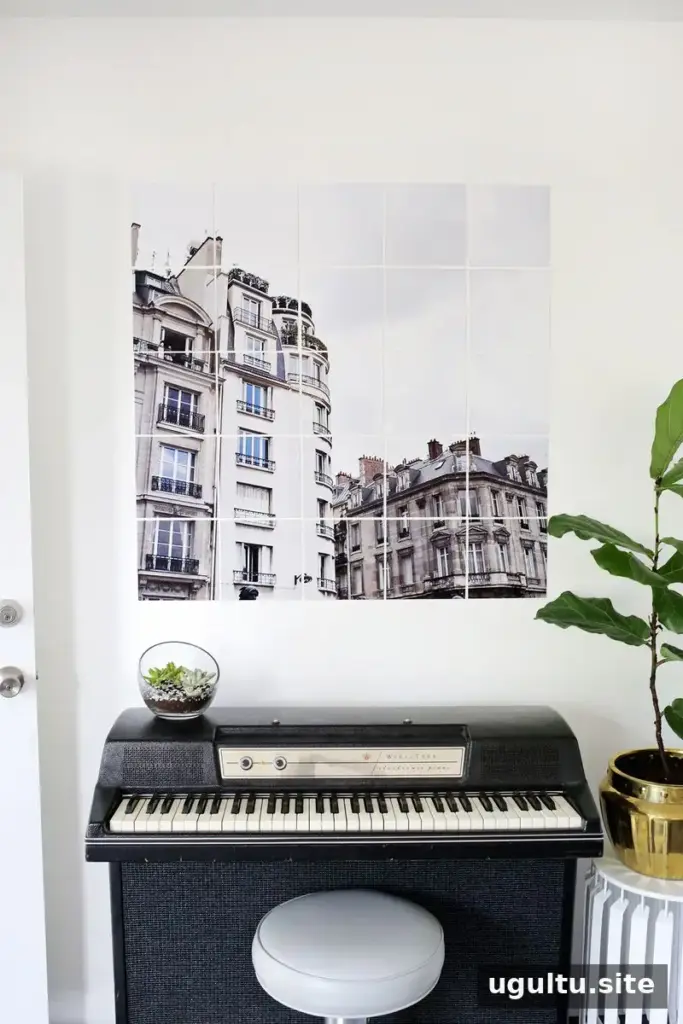
Oversized tiled photo art turns a favorite photograph into a large wall display using several smaller printed sections. It’s a practical way to create a statement piece when your printer handles standard paper sizes but you want an image that fills more space. A travel photo, family picture, or landscape can all work well; choose an image with enough detail to remain appealing when enlarged.
Plan Your Oversized Tiled Photo Art
Start by choosing the final dimensions and deciding how many tiles you want across and down. The example project uses a square image with a finished width of 38 inches. Divide the overall width by the number of tiles in each row to calculate the size of each square. Make sure every tile will fit on the paper your printer can handle. For example, the original project used 8.5-by-11-inch sheets.
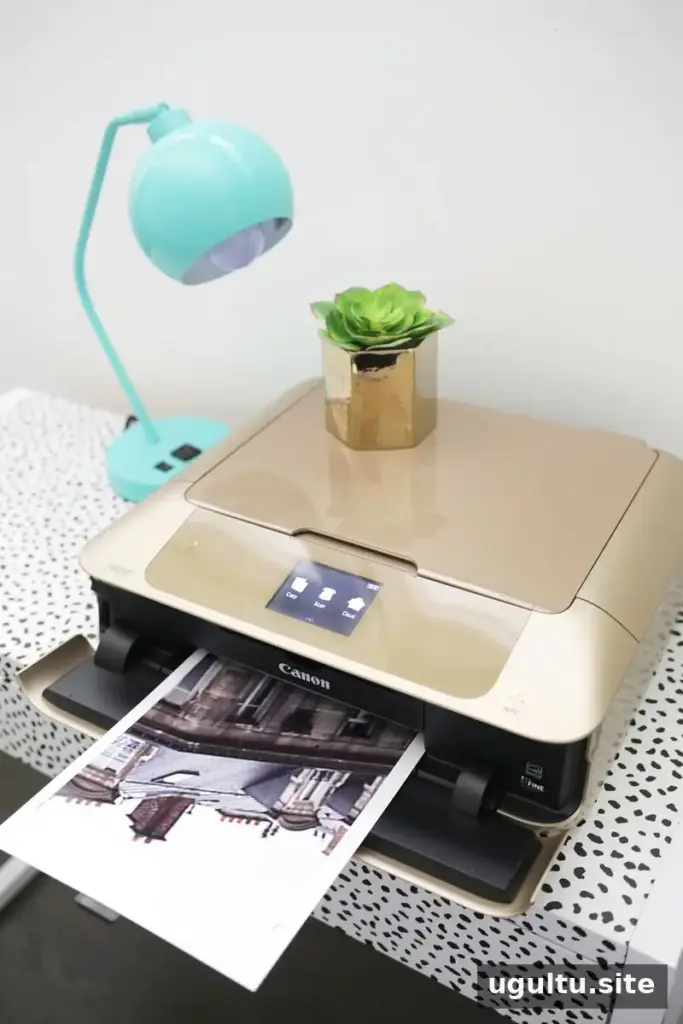
A photo printer such as the Canon PIXMA MG7720 can be used for this project. Before printing the full set, check that the printer is set to the correct paper size and that the image is oriented as intended. A single test print can help you assess color and sharpness before using the rest of your photo paper.
Materials
Gather these supplies before preparing the image:
- Photo paper, such as semi-gloss paper
- Photo-editing software, such as Photoshop
- Mat board
- X-Acto knife and a ruler
- Thin washi tape
- Spray adhesive
- Canon PIXMA MG7720 Photo Printer
Prepare and Divide the Image
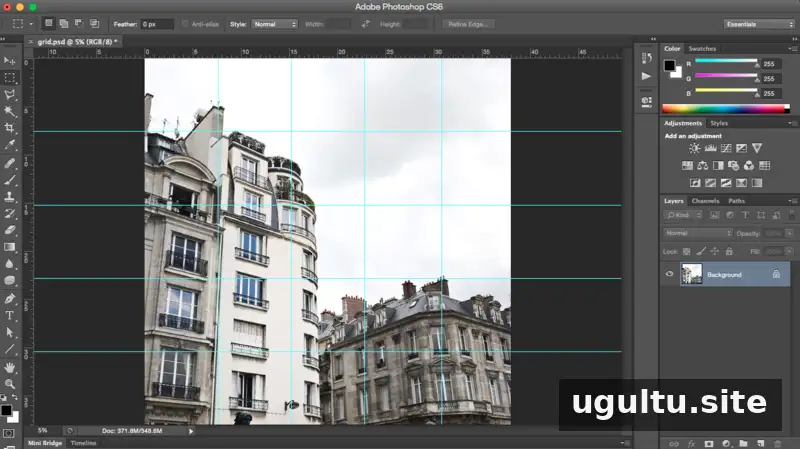
Open the selected photo in your editing software and crop it to a square. In Photoshop, use the Image Size controls to adjust the resolution and document dimensions for the intended finished size. The original method increases resolution in 10% increments until it reaches 300 dpi, then adjusts the document size. Enlarging an image can make it appear softer, so use a high-resolution original when possible and inspect the result before printing.
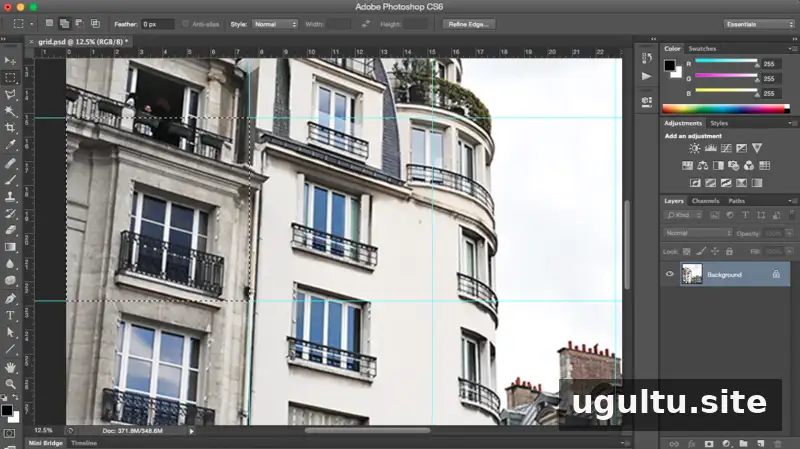
Use rulers and guides to create an evenly spaced grid over the square image. Divide the image into equal sections, using the planned tile dimensions as a guide. Keep each section within the printable area of your paper, allowing for any margins your printer requires.
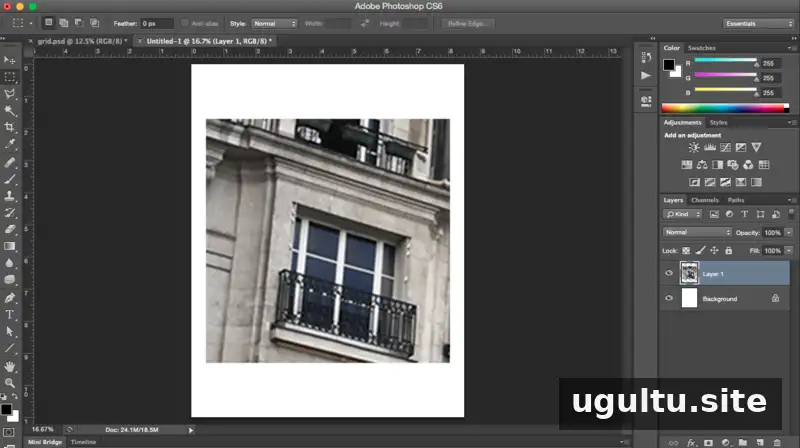
Select one square at a time with the rectangular marquee tool. Copy it into a new document set to the dimensions of your printer paper, then print it. Repeat for every section. Lay the printed tiles out in the correct order before cutting, and label each one discreetly near a top corner. This simple numbering system makes assembly much easier.
Mount and Cut the Photo Tiles
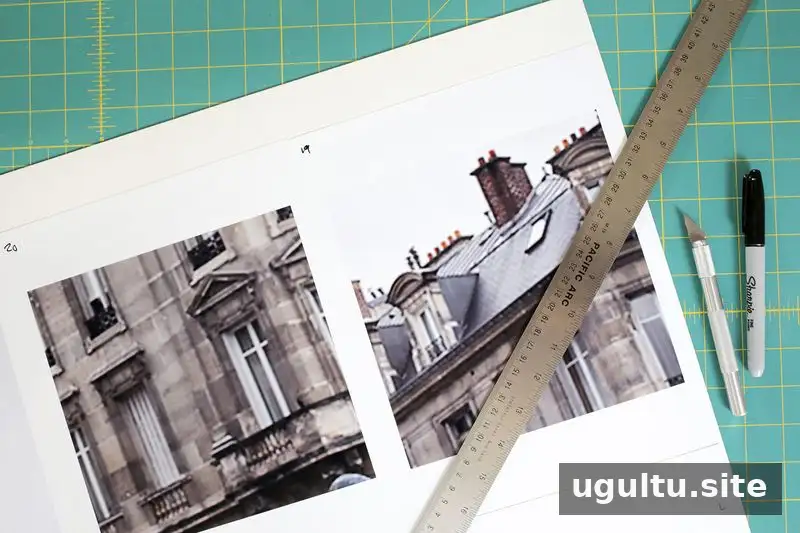
Apply spray adhesive to attach each printed section to the mat board. Use a ruler and X-Acto knife to cut along the tile edges. If a section has a very light edge that is difficult to see, add crop marks before printing so the cutting line is clear. Work on a protected, flat surface and follow the adhesive and knife safety instructions.
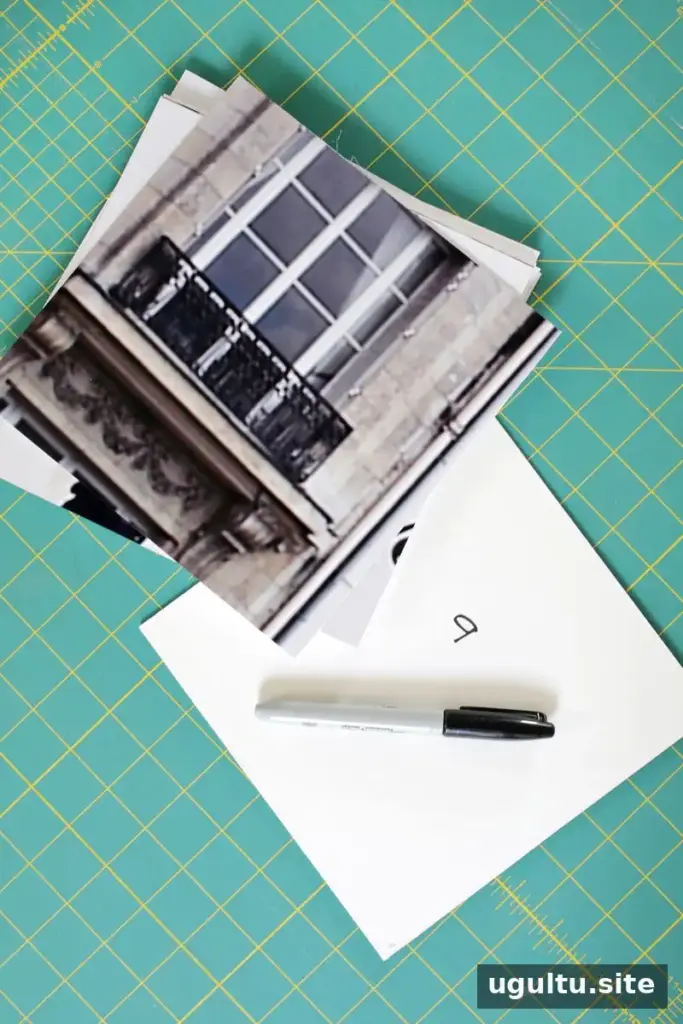
After cutting, transfer each tile’s number to its back. Add an arrow to show which edge belongs at the top, especially on pieces with labels such as “8” or “11,” which can be turned around by mistake.
Arrange and Hang the Finished Artwork
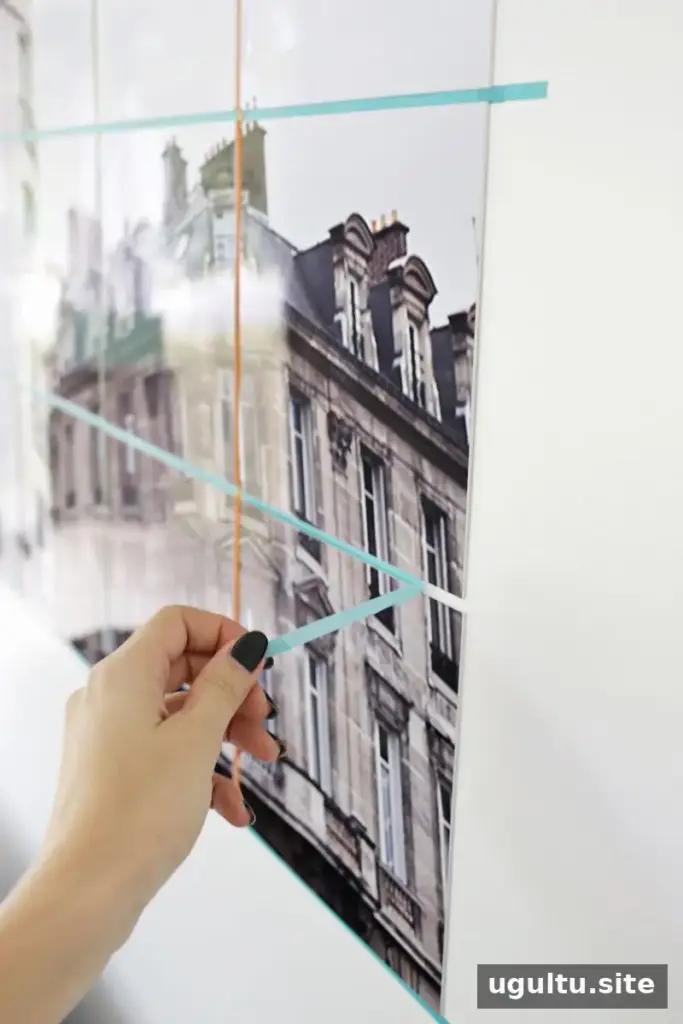
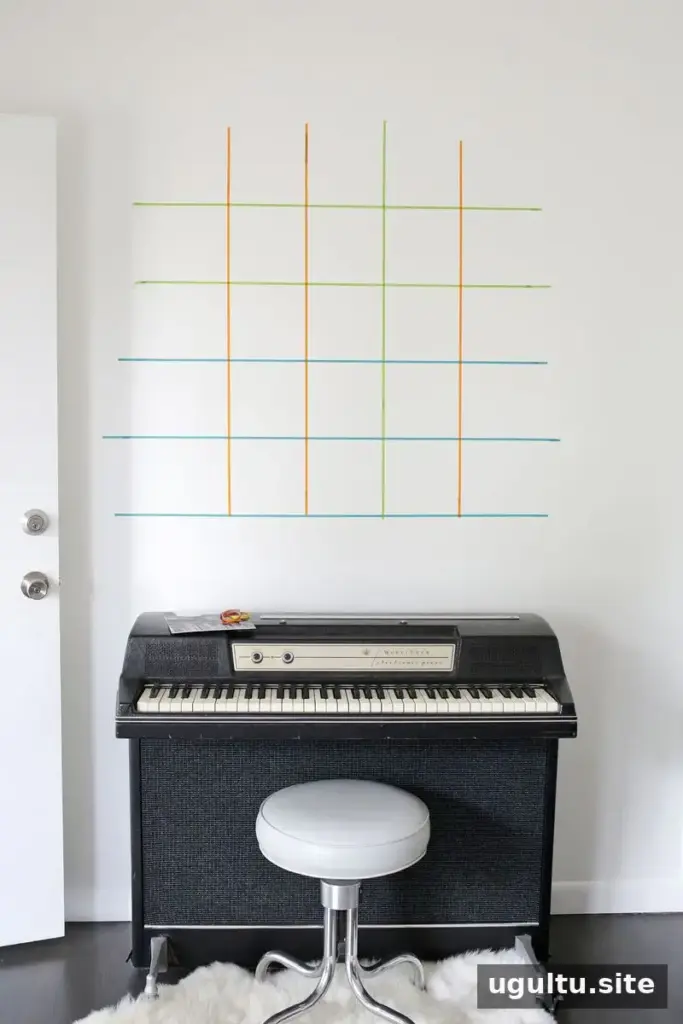
Use thin washi tape to mark the grid on the wall before mounting the tiles. A level can help keep the rows straight and the gaps consistent. Place each section in its numbered position and attach it with small nails or suitable picture-hanging strips. Check that the mounting method works with your wall surface and the weight of the finished pieces. Once all tiles are in place, remove the tape and inspect the image from a few steps back.
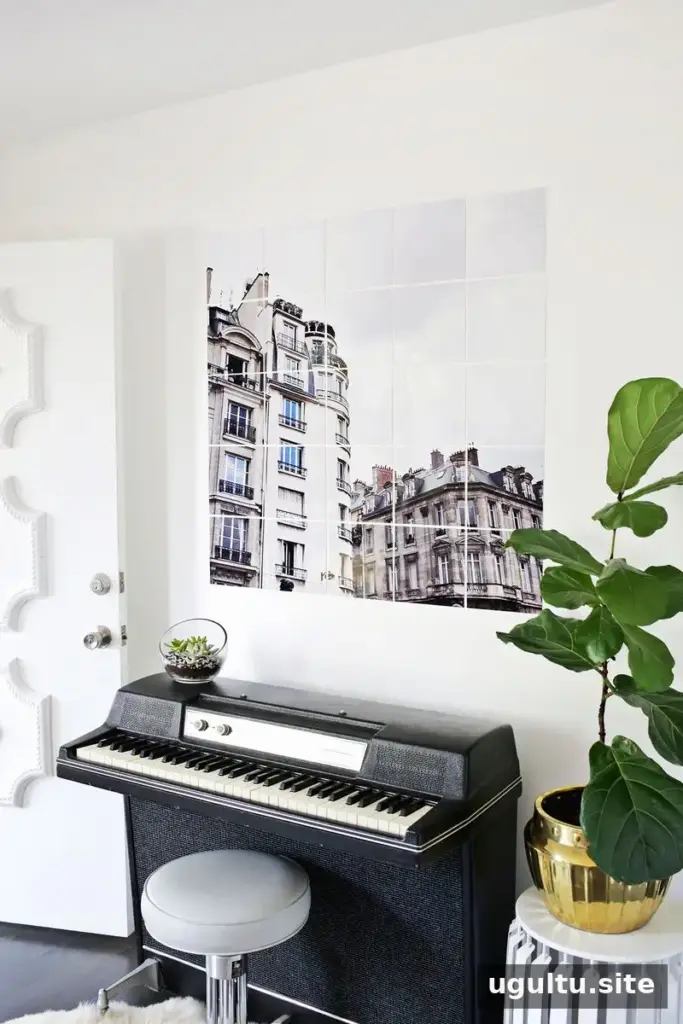
Oversized tiled photo art offers a way to revisit a meaningful place or moment while adding a personal focal point to a room. Careful planning, clear labels, and a level layout help the separate prints read as one cohesive image. The original project features a photograph of Paris and is credited to Laura.