
 admin
admin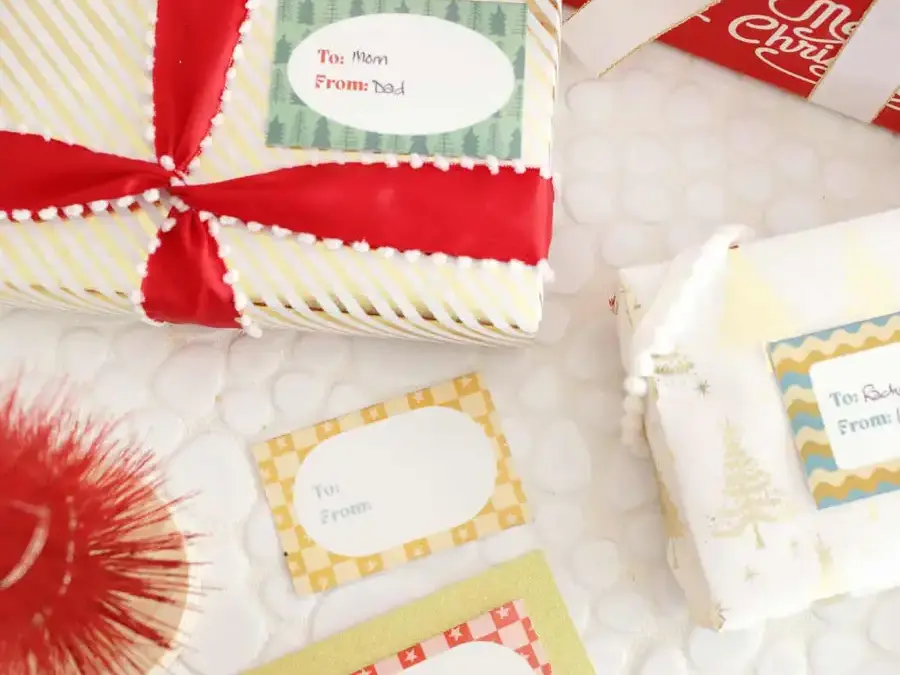
Printable gift tags make it easy to add a personal detail to presents without spending a lot of time on decorations. A favorite photo or custom design can turn a simple gift bag or wrapped box into something more thoughtful, especially during the busy Christmas and holiday season.
With the IVY 2 Mini Photo Printer, you can print sticker designs at home and attach them directly to gifts. The steps below explain what you need, how to print the designs, and a couple of ways to use the finished tags.
More photo craft ideas
- Wooden Ball Photo Holder DIY
- Simple and easy scrapbooking ideas
- DIY photo glitter globes
- Personalized photo ring dish

How printable gift tags work with the IVY 2 Mini Photo Printer
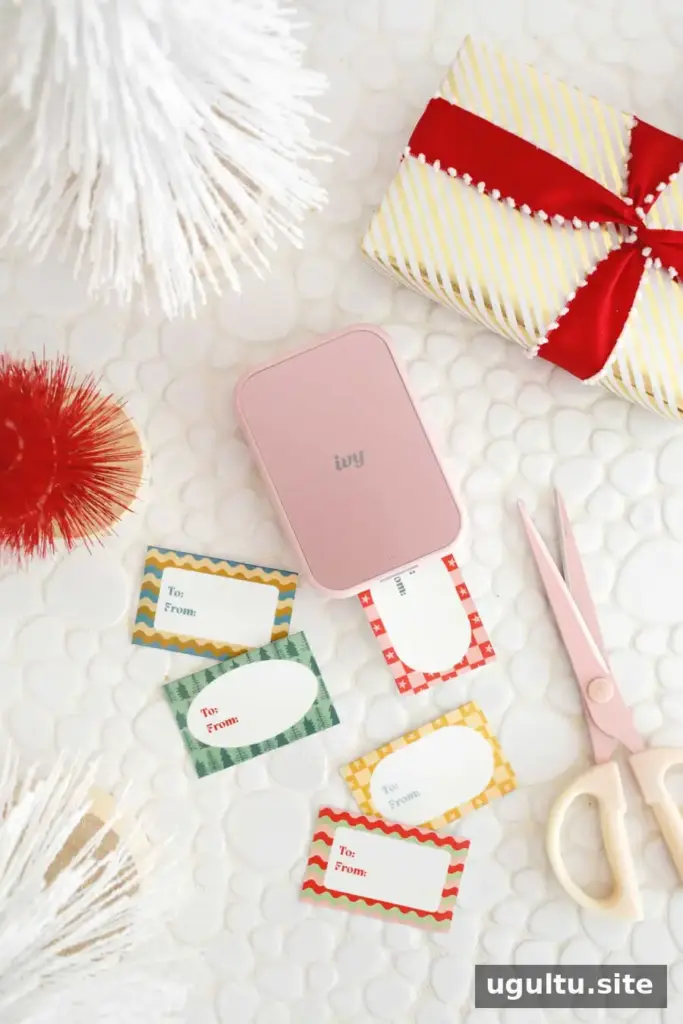
The IVY 2 Mini Photo Printer uses sticker paper in either a 2″ x 3″ rectangle format or as two 1.3″ wide circle stickers. Because the prints have an adhesive backing, they can be placed on gift wrap or a gift bag without separate tape or glue.
The printer is available in blush and white. It connects to a phone through Bluetooth, and its updated connection and longer-lasting charge can help when you are printing several tags in a row. The Canon Mini Print app lets you select an image from your phone’s photo library. It also offers options for making collages and adding text or designs to photos.
Practical tip: Check that the sticker paper is loaded correctly and the printer has enough charge before starting a batch. This can help avoid interruptions when preparing several gifts.
Supplies you will need
- IVY 2 Mini Photo Printer
- ZINK Photo Paper Pack
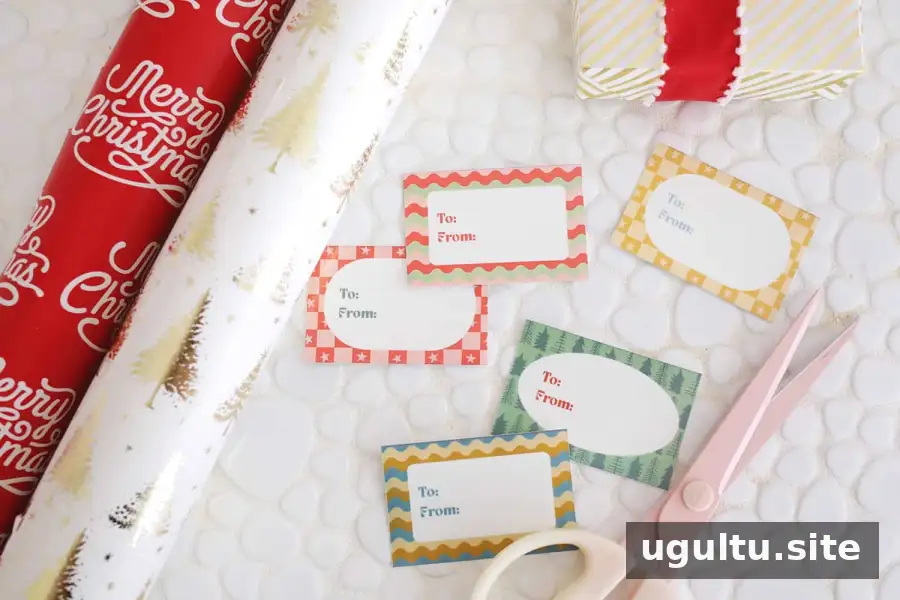
- Custom gift tag sticker download
- Canon Mini Print app for Apple or Google Play
- Cardstock paper, optional
- Twine, optional
- Hole punch, optional
How to print the free printable gift tags
First, download the gift tag designs to your phone so they appear in your photo library. Open the Canon Mini Print app and switch on the printer. Connect the printer to the app using Bluetooth; the connection status is shown near the top-right corner of the app’s home screen.
- Choose a design from your photo library in the app.
- Check the selected image and layout before printing.
- Tap the print icon in the lower-left area of the screen.
- Wait for the sticker to print, then let the print finish before peeling it from its backing.
If a print does not appear, confirm that Bluetooth is connected and that the printer has paper and charge. Keeping the designs saved on your phone also makes them easier to find when you are ready to print.
Another seasonal craft idea
A Christmas sweater garland is another way to add a handmade detail to holiday decorations.
Ways to use printable gift tags
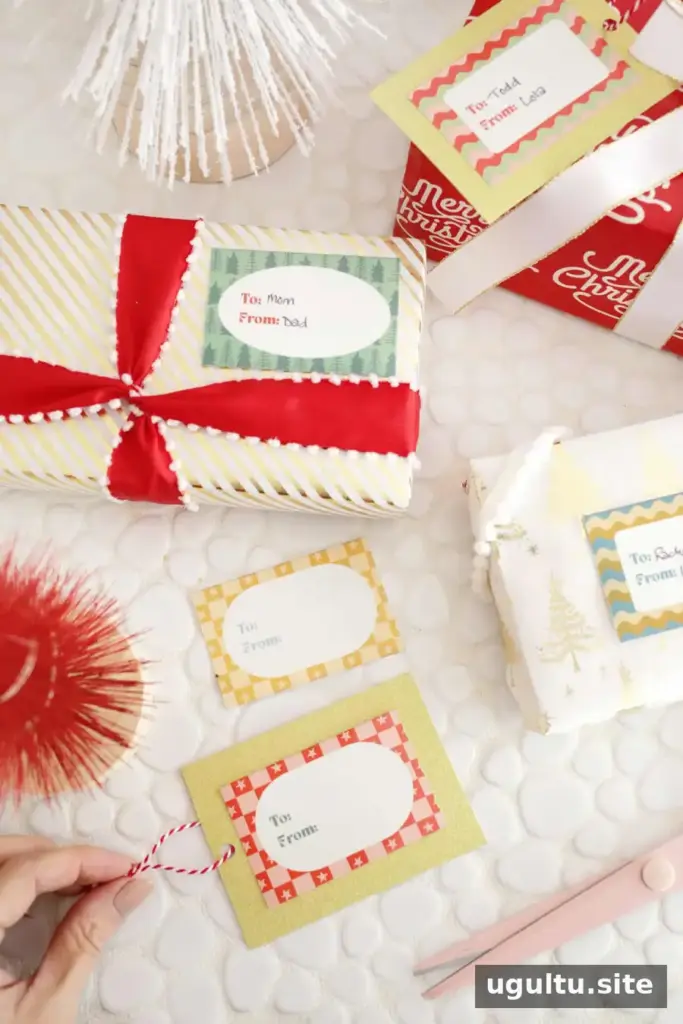
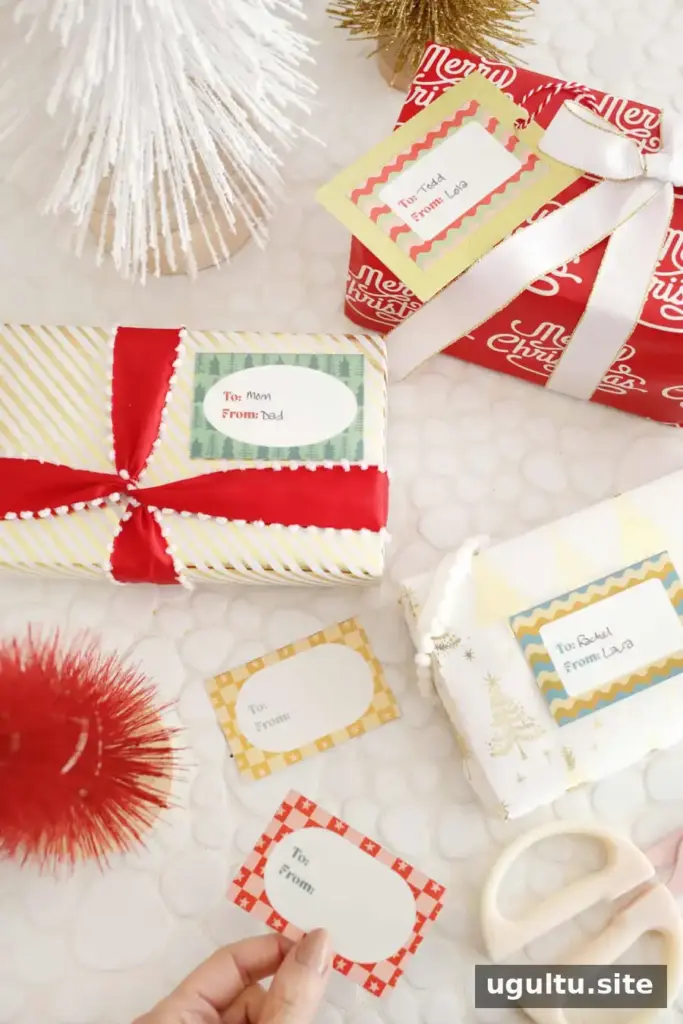
For a quick finish, peel the backing from a printed sticker and place it directly on wrapping paper or a gift bag. Leave space to write the recipient’s name, or add the name to the design in the app before printing.
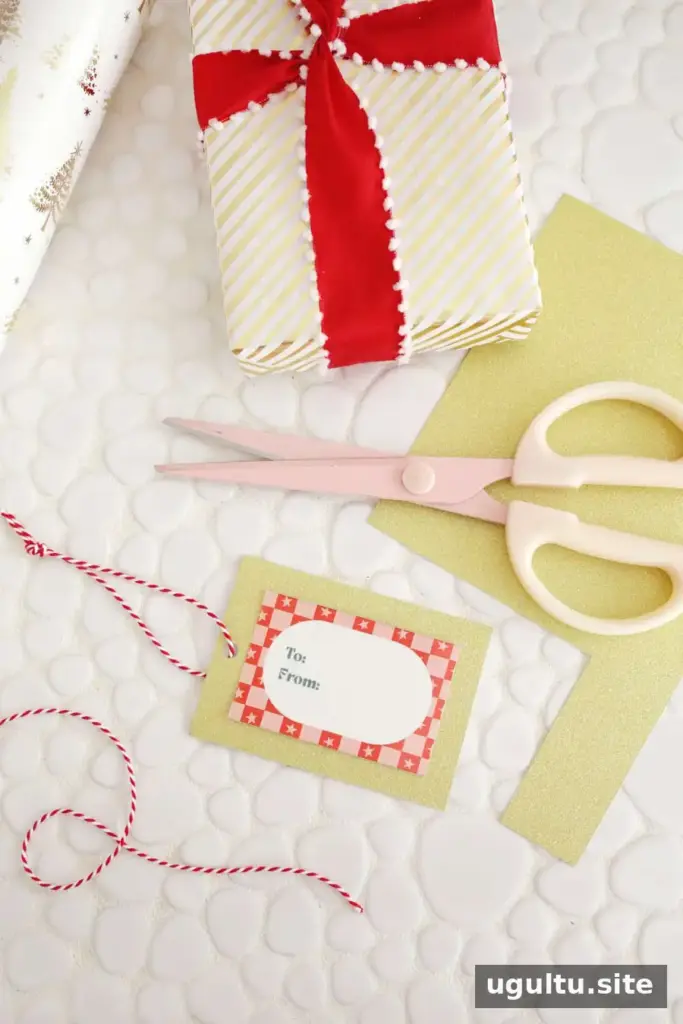
To make a hanging tag, attach the sticker to a piece of cardstock cut slightly larger than the print. Punch a hole through the cardstock and thread twine through it. The cardstock gives the tag a border and makes it easier to tie onto a package.
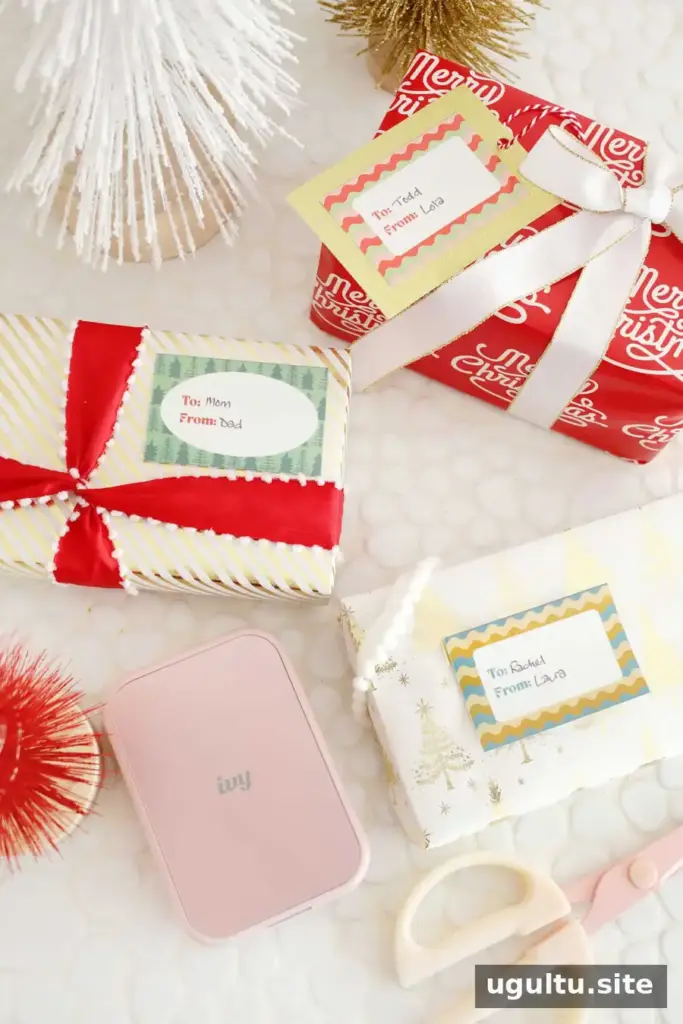
These printable gift tags can be used throughout the year, not just for Christmas. Photo stickers work well for birthdays, celebrations, and other occasions when a small personal touch is welcome. Choose a design that suits the gift, and print only the number you need to reduce unused stickers. With a few supplies prepared in advance, making custom tags at home can be a simple part of gift wrapping.
By Laura